
Merge tags and spintax
Personalize outreach in Tantra with merge tags like firstName and company, and add spintax variants that stay stable per recipient.
Open in Tantra
These open the app in a new tab. You may be asked to sign in.
Overview
Merge tags are placeholders that Tantra swaps for each recipient's own data when a message is sent. Spintax lets you offer several wordings and have Tantra pick one per recipient. Together they make one template read as many slightly different, personalized messages. This article explains the exact syntax and its rules.
Every tag below is shown inside backticks so you can copy it. In your actual subject or body you type the tag itself.
How it works
Merge tags
A merge tag is a field name wrapped in double curly braces, for example {{firstName}}. At send time Tantra replaces it with that recipient's value.
You can reach nested data with dot paths, for example {{contact.company}} or {{sender.firstName}}. Dot paths resolve up to four levels deep. Anything deeper is treated as unknown.
If a tag has no matching value, Tantra renders it as empty text. It does not print the raw {{tag}} and it does not error. A missing first name simply produces a blank, so write your copy so it still reads well when a value is empty.
Spintax
Spintax is a set of choices wrapped in single curly braces and separated by pipes, for example {Hi|Hey|Hello}. Tantra picks one option for each recipient.
The choice is deterministic per recipient. The same recipient always sees the same variant on the same message, so a person never sees the wording change if a message is re-rendered. Different recipients can see different variants, which adds natural variety across your send.
You can nest spintax inside spintax. Tantra resolves it in passes until no choices remain.
What is not supported
Tantra does not support Liquid-style conditionals such as if or else blocks inside templates. Merge tags and spintax are the two tools available. If you need different copy for different segments, use separate templates or separate campaigns.
Where you insert tags
The merge fields available depend on the screen you are editing, because different surfaces expose different data.
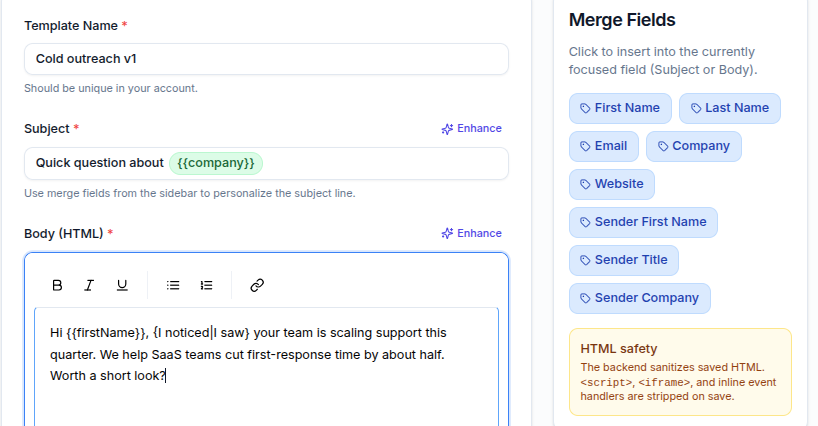
Email template editor. Open the Merge Fields sidebar and click a field to insert it into the focused Subject or Body. The available fields are:
{{firstName}}{{lastName}}{{email}}{{company}}{{website}}{{sender.firstName}}{{sender.title}}{{sender.companyName}}
Cold email sequence builder. Each step has an Insert variable control. The available fields are:
{{firstName}}{{lastName}}{{fullName}}{{email}}{{company}}{{title}}{{website}}
The sender fields appear in the template editor, and the sequence builder adds {{fullName}} and {{title}}. Use the picker on each screen rather than typing tags from memory, so you only use fields that screen supports.
Step-by-step: add a merge tag
- Open the email template editor or a sequence step.
- Click into the Subject or Body where you want the value.
- Click the merge field in the sidebar or the Insert variable control.
- The tag appears as a protected token in the editor.
Step-by-step: add spintax
- Click into the Subject or Body.
- Type your choices in single braces separated by pipes, for example
{Hi|Hey|Hello} {{firstName}}. - Save the template or step.
Field reference
| Syntax | Example | Result |
|---|---|---|
| Merge tag | {{firstName}} | The recipient's first name |
| Dot path | {{contact.company}} | A nested value, up to four levels deep |
| Sender tag | {{sender.firstName}} | Your sending mailbox's first name |
| Unknown tag | {{missing}} | Empty text, not the raw tag |
| Spintax | {Hi|Hey|Hello} | One choice, stable per recipient |
What happens next
Tags are not resolved while you type. They stay as tokens in the editor and in the saved template. Resolution happens when Tantra renders the message for a specific recipient, just before it sends. To preview real output before launch, use the test controls in the campaign builder. For cold email, the sequence builder has a Test against a contact option on AI steps. See AI personalization for email and calendar.
Best practices
- Write copy that still reads well when a value is empty, since unknown tags render blank.
- Keep at least one
{{firstName}}in outreach for a personal touch. - Use spintax on openers and common phrases to add variety without writing many templates.
- Insert tags from the picker so you only use fields the screen supports.
Common mistakes
- Expecting a missing tag to show the raw text. It renders as empty instead.
- Using a field on the wrong screen, for example
{{title}}in the template editor, which offers sender fields rather than{{title}}. - Trying to add if or else logic. Conditionals are not supported. Use separate templates.
- Assuming spintax randomizes on every view. It is stable for a given recipient.
Troubleshooting
| Symptom | Cause | Fix |
|---|---|---|
| A tag shows up blank in the sent message | The recipient has no value for that field | Fill the contact data, or rewrite so the line works when empty |
| A dot path renders blank | The path is deeper than four levels or the field name is wrong | Shorten the path and confirm the field name |
| A field you want is not in the picker | That screen does not expose it | Use a supported field, or add the data to your contacts |
| Spintax prints literally with braces | It has no pipe, so there is nothing to choose | Add at least one pipe, for example {a|b} |
FAQ
What does a merge tag look like?
A field name in double curly braces, for example {{firstName}}. Dot paths like {{contact.company}} reach nested data.
What happens if a contact is missing a value?
The tag renders as empty text. Tantra never prints the raw {{tag}}.
How deep can dot paths go?
Up to four levels. Deeper paths are treated as unknown and render blank.
Is spintax random for each person?
It varies between people but is stable for a single recipient, so the same person always sees the same variant.
Can I use if or else conditions?
No. Conditionals are not supported. Use separate templates or campaigns for different segments.
Why are the available fields different in the template editor and the sequence builder?
Each screen exposes the data it has. Use the picker on the screen you are editing.
Related articles
Was this article helpful?
Related articles
- Create and manage templatesBuild reusable email and calendar templates in Tantra, insert merge fields, and use built-in AI to generate or improve copy.
- AI personalization for email and calendarTantra rewrites your email and calendar copy per recipient using their website. Turn it on per step or campaign, with template fallback.