
Add email signatures to your senders
Create a per-mailbox email signature with merge fields, preview it against a sample contact, and control when it is appended to outgoing email.
Open in Tantra
These open the app in a new tab. You may be asked to sign in.
Overview
Each sender mailbox in Tantra can have its own email signature. The signature is stored per mailbox, not per user, so every sender persona can sign differently. When enabled, it is appended to cold email sequence sends from that mailbox.
Signatures apply to cold email only. Calendar invitations do not use them, and warmup emails are sent without one.
Before you start
- The sender must be verified and Gmail capable. The Signature button is disabled for calendar-only senders, with the note that signatures are only available for Gmail-capable accounts. See Add and verify your senders.
Step-by-step
- In the left sidebar, click Accounts.
- On the sender's row, click Signature. The Email signature drawer opens on the right and shows the mailbox address.
- Turn on Append signature to outbound emails. Disabled signatures stay saved but are not appended at send time.
- Fill in the Sender profile fields, or click Fetch name from Gmail to pull the display name from that mailbox's Gmail settings.
- Write the signature in the Signature HTML editor. Use Insert merge field to place tokens at the cursor.
- Check the Preview (sample contact) and Plain-text version panels.
- Click Save signature. A confirmation toast reads
Signature saved.
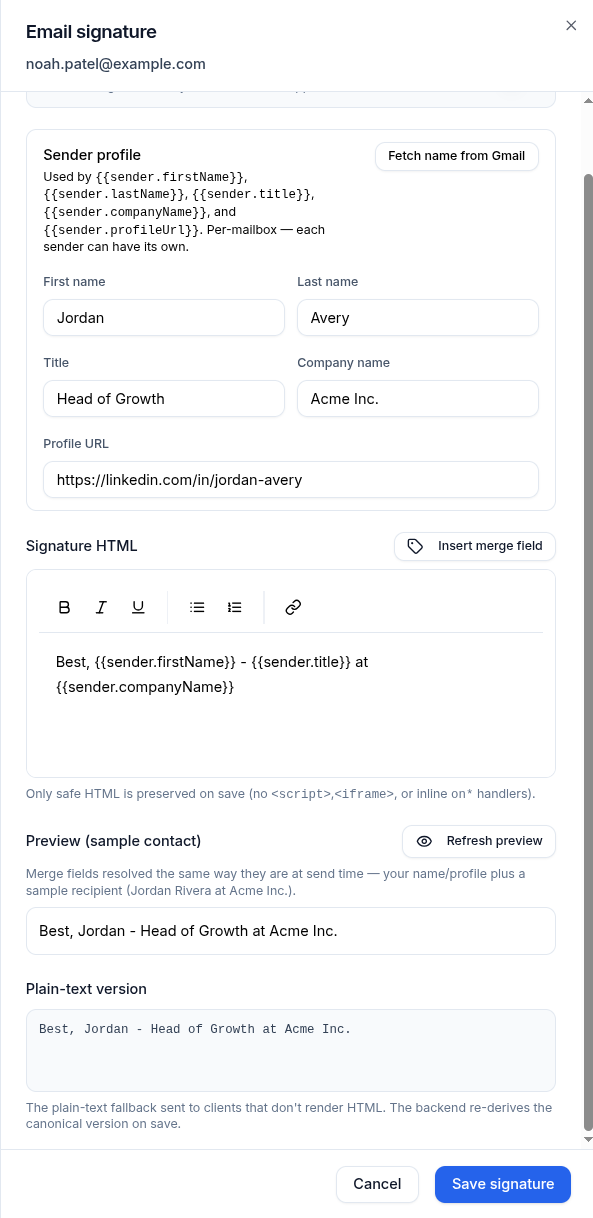
Screens and controls
- Append signature to outbound emails switch. Controls whether the saved signature is added at send time.
- Sender profile fields: First name, Last name, Title, Company name, and Profile URL. Name, title, and company fields accept up to 200 characters. The profile URL accepts up to 500.
- Fetch name from Gmail button. Pulls the mailbox's display name from its Gmail send-as settings through your service account. The fields stay editable afterward.
- Signature HTML rich text editor with an Insert merge field popover.
- Preview (sample contact) panel with a Refresh preview button. The preview also refreshes on its own shortly after you stop typing.
- Plain-text version panel. Shows the fallback sent to email clients that do not render HTML.
- Save signature and Cancel buttons in the footer.
Field reference
The Insert merge field popover offers these tokens.
| Merge field | Token | Resolves to |
|---|---|---|
| Sender first name | {{sender.firstName}} | Your First name field, or the Gmail name on file when blank |
| Sender last name | {{sender.lastName}} | Your Last name field, or the Gmail name on file when blank |
| Sender title | {{sender.title}} | The Title field |
| Sender company | {{sender.companyName}} | The Company name field |
| Sender profile URL | {{sender.profileUrl}} | The Profile URL field |
| Contact first name | {{firstName}} | The recipient's first name |
| Contact company | {{company}} | The recipient's company |
The sender name never falls back to your Tantra account name. It uses the manual profile first, then the cached Gmail name, then stays blank.
What happens next
The signature is applied at send time, not when you save. When a cold email sequence step goes out from this mailbox, Tantra checks the mailbox's signature. If it is enabled, the rendered signature is appended after the message body, before the unsubscribe footer.
Merge fields resolve against the real recipient at that moment, the same way the drawer preview resolves them against the sample recipient. Spintax choices such as {a|b|c} are deterministic per recipient and step, so retries produce the same text. If you leave the signature disabled, nothing is appended and the saved content waits until you turn it on.
The plain-text version is derived from your HTML on save, so both the HTML and plain-text parts of every email carry the signature.
Best practices
- Keep one signature per persona. Because signatures are per mailbox, two senders on the same domain can sign with different names and titles.
- Fill the Sender profile even if your signature text does not use every token. Blank tokens render as empty strings, which can leave odd gaps.
- Use the preview before saving. It resolves merge fields exactly the way the send path does.
Common mistakes
- Typing a merge token by hand with a typo. Unknown tokens render as empty text. Use Insert merge field instead.
- Expecting the signature on calendar invitations. Signatures apply to cold email sends only.
- Enabling a signature on one mailbox and expecting it on all senders. Each mailbox has its own signature.
Troubleshooting
| Symptom | Cause | Fix |
|---|---|---|
| The Signature button is disabled | The sender is calendar-only, not Gmail capable | Grant the Gmail scopes and re-verify. See Sender connection states explained |
| Fetch name from Gmail reports no name | The mailbox has no display name in its Gmail send-as settings | Type the name manually. The manual fields always win |
| Sent emails have no signature | The Append signature to outbound emails switch is off | Open the drawer, turn the switch on, and save |
| A token appears empty in sent email | The matching Sender profile field or contact field is blank | Fill the field, or remove the token |
FAQ
Does the signature apply to every sender at once?
No. Signatures are stored per mailbox. Open the drawer from each sender's row to set one.
Which emails get the signature?
Cold email sequence sends from that mailbox, when the switch is on. Calendar invitations and warmup emails do not include it.
What happens if I disable the signature?
It stays saved but is not appended to new sends. Enable it again at any time.
Can the signature personalize per recipient?
Yes. {{firstName}} and {{company}} resolve to the recipient's own details on each send.
Where does the plain-text version come from?
Tantra derives it from your HTML when you save. Clients that cannot render HTML receive that version.
Related articles
Was this article helpful?
Related articles
- Add and verify your sendersPaste the mailboxes you want to send from and verify them against your uploaded service accounts using domain-wide delegation.
- Sender connection states explainedUnderstand the Connected, Disconnected, Gmail capable, and Calendar-only states Tantra shows for each sender mailbox.
- Build an email sequenceUse Tantra's six-step wizard to build a cold email sequence, pick senders and audience, set limits, and launch or schedule your campaign.