
Sync webinars with Zoom
Connect a Zoom Server-to-Server OAuth app, sync webinars and registrants, register contacts who RSVP, and see which invites turned into attendance.
Open in Tantra
These open the app in a new tab. You may be asked to sign in.
Overview
Connect Zoom and Tantra will sync your webinars, their registrants, and who actually attended. Link a webinar to a campaign and your reports can then answer the question the integration exists for: of the people you invited, how many showed up.
Tantra can also register contacts for you. When someone accepts or tentatively accepts your calendar invite, Tantra signs them up for the linked webinar so Zoom sends them the join link.
You can use Zoom and WebinarGeek at the same time. Each campaign links to one webinar from one provider.
Before you start
Three things have to be true on the Zoom side, and each one blocks a different part of the integration.
- A Zoom plan on Pro or higher with the Webinars add-on. Workplace Pro on its own does not include it. Without the add-on there are no webinars to sync, and attendance reports are unavailable.
- An account-level app. Participant reports carry personal data, so Zoom only serves them to Server-to-Server OAuth apps. A user-level app cannot read them at all.
- The View Reports role permission for whoever creates the app, under User Management then Roles in your Zoom admin. Without it the report scopes do not even appear in Zoom's scope picker, which looks like the scopes are missing from Zoom.
Create the Zoom app
- Open marketplace.zoom.us/user/build, click Develop in the top right corner, and choose Build app.
- In the "What kind of app are you creating" dialog choose Server to Server OAuth App. Zoom pre-selects General App, which uses a different kind of OAuth. Its credentials will be rejected by Tantra.
- Copy the Account ID, Client ID and Client Secret from the app credentials page.
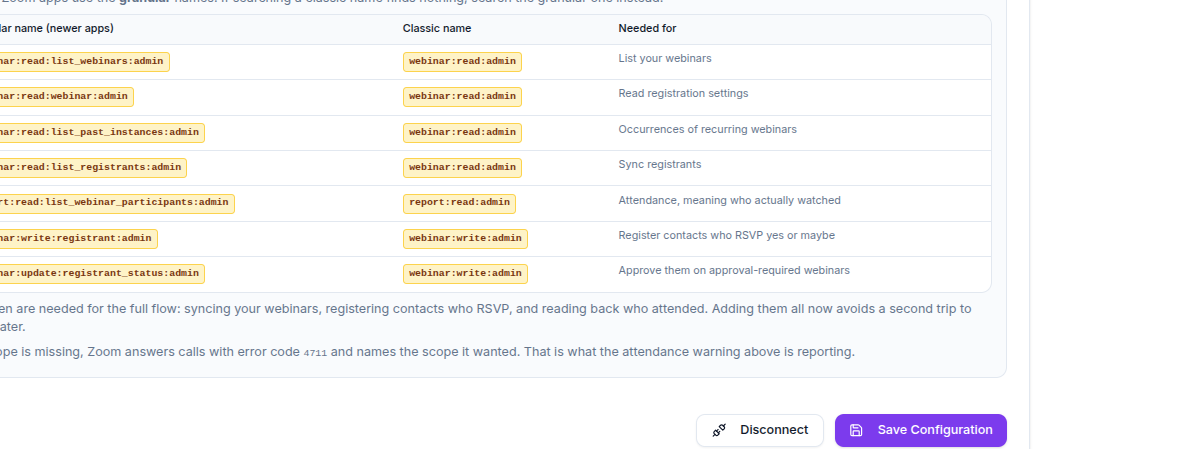
- On the Scopes tab, add all seven scopes listed below.
- Activate the app on the Activation tab.
Scopes to add
Newer Zoom apps use granular scope names. If you search for a classic name and find nothing, search the granular one instead.
| Granular name (newer apps) | Classic name | Needed for |
|---|---|---|
webinar:read:list_webinars:admin | webinar:read:admin | List your webinars |
webinar:read:webinar:admin | webinar:read:admin | Read registration settings |
webinar:read:list_past_instances:admin | webinar:read:admin | Occurrences of recurring webinars |
webinar:read:list_registrants:admin | webinar:read:admin | Sync registrants |
report:read:list_webinar_participants:admin | report:read:admin | Attendance, meaning who actually watched |
webinar:write:registrant:admin | webinar:write:admin | Register contacts who RSVP yes or maybe |
webinar:update:registrant_status:admin | webinar:write:admin | Approve them on approval-required webinars |
All seven cover the full flow. Adding them together avoids a second trip to Zoom after discovering that registration silently does nothing.
Connect Tantra
- In the sidebar, open Connectors, then choose Zoom.
- Paste your Account ID, Client ID and Client Secret, then click Save Configuration.
- Tantra validates the credentials with Zoom before storing anything, then tests what your account can read.
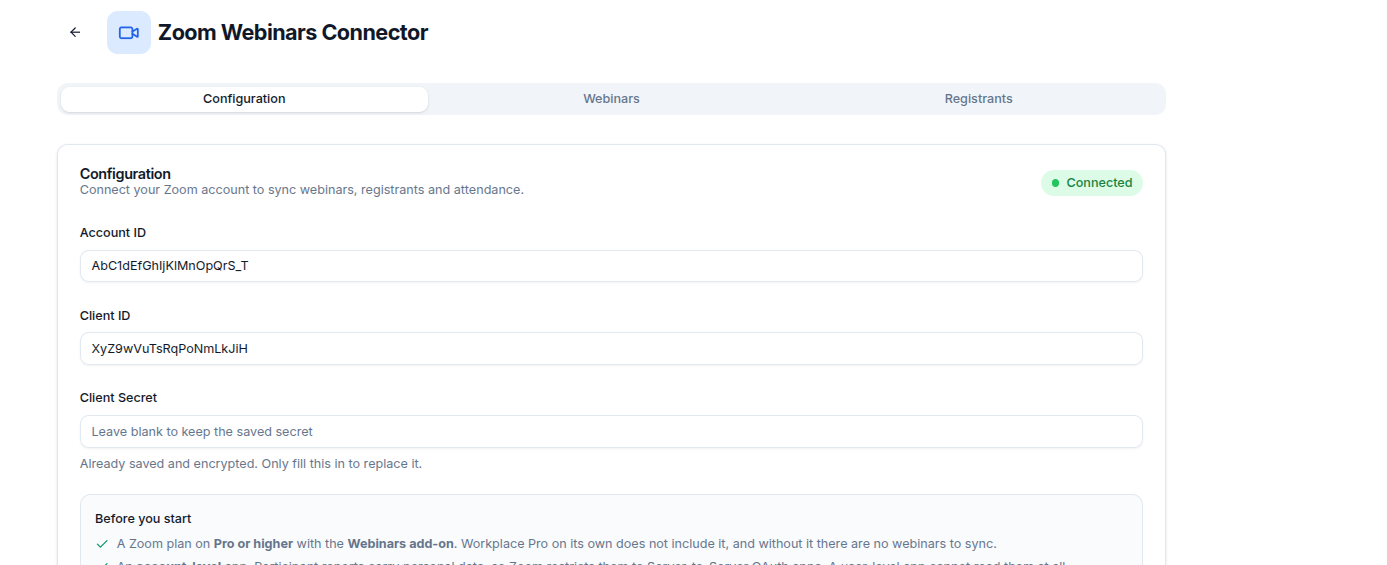
The Account ID and Client ID are shown again when you return to the page, so you rarely need to look them up twice. The Client Secret is encrypted and never shown again. Leave it blank when re-saving to keep the one already stored.
Sync your webinars
Open the Webinars tab and click Sync webinars. Then use Sync registrants on a row, or Sync all registrants to do every webinar at once.

Syncs run only when you trigger them. Nothing refreshes in the background, so sync again when you want fresh numbers. Attendance for a webinar that has already finished never changes, so Tantra skips re-fetching those.
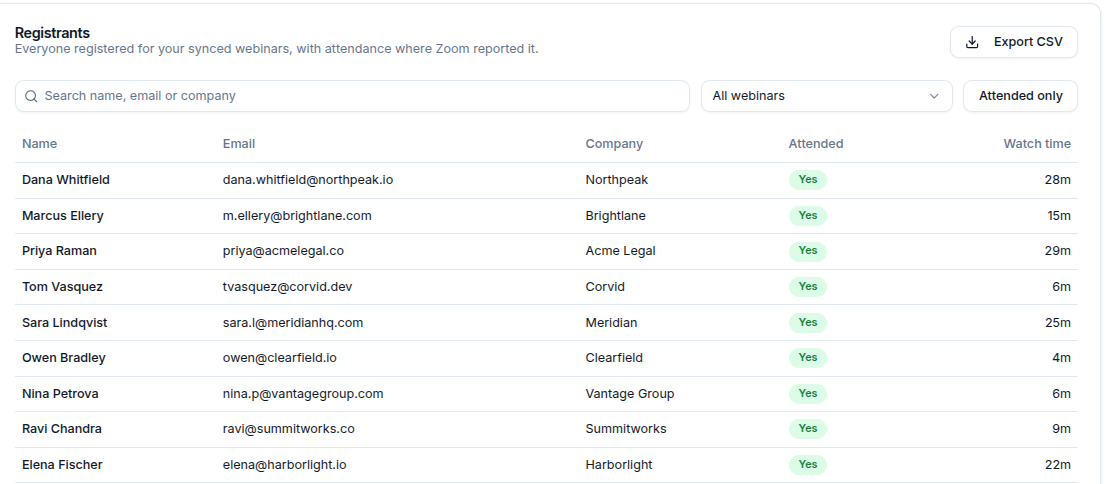
The Registrants tab lists everyone who signed up, with attendance and watch time where Zoom reported it.
Recurring webinars
A recurring Zoom webinar appears once per occurrence, because Zoom reports attendance per session. Each row is one dated session, and a campaign links to one of them rather than to the whole series.
Zoom shares one topic across every occurrence in a series, so the picker adds the date to tell them apart.
Link a webinar to a campaign
Webinar data on its own does not attribute anything. The link is what connects your outreach to attendance.
- Create a smart calendar campaign.
- In step 1, set Link to Webinar to Zoom and pick the webinar.
- Optionally turn on Register contacts who RSVP yes or maybe.

You can only pick webinars that have already been synced. Email sequences can link a webinar too, for attribution only, since there is no RSVP in email to register anyone on.
Registering contacts automatically
With the toggle on, Tantra registers each contact who accepts or tentatively accepts, and Zoom sends them the join link. Contacts receive Zoom's own confirmation email, so turn this on only when that is what you want.
Registrations run a few minutes after the RSVP arrives, not instantly. The campaign page shows how many were registered and how many could not be.
What appears in reports
On the Reports page, use Filter by Webinar and pick your Zoom webinar. The dropdown groups webinars under Zoom and WebinarGeek, and only shows a group when that provider has data.
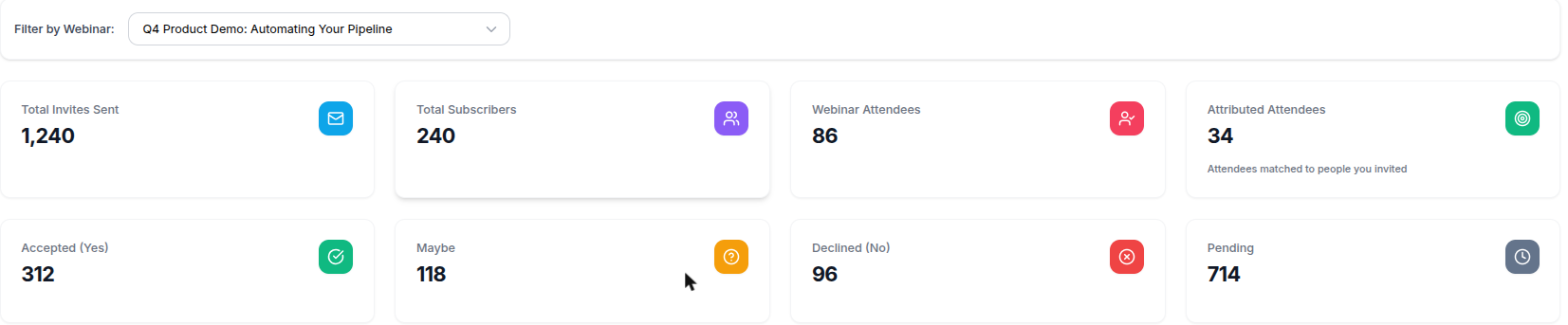
Attributed Attendees is the number this integration exists to produce: attendees Tantra matched to people you invited. Plain Webinar Attendees counts everyone who showed up, including people who found the webinar some other way.
All of these stay at zero until a campaign is linked to the webinar. The counts come from campaigns, not from the webinar by itself.
Field reference
| Control | What it does |
|---|---|
| Account ID, Client ID | Public identifiers from your Zoom app. Shown again after saving. |
| Client Secret | Stored encrypted. Leave blank when re-saving to keep the current one. |
| Re-check access | Re-tests what your Zoom account can read. Use after granting a scope. |
| Disconnect | Removes the stored credentials. Synced webinars and registrants remain. |
| Sync webinars | Fetches your webinar list, one row per occurrence. |
| Sync registrants | Syncs one webinar's registrants and merges in attendance. |
| Sync all registrants | Does the same for every synced webinar, skipping finished ones already recorded. |
| Export CSV | Downloads the registrant list with attendance and watch time. |
Common mistakes
- Choosing General App in Zoom's dialog. It is pre-selected, and its credentials cannot work here.
- Searching for
report:read:adminin a newer app. That name does not exist there. Searchreport:read:list_webinar_participants:admin. - Forgetting to activate the app after adding scopes.
- Expecting reports to fill in without linking a campaign to the webinar.
- Expecting syncs to happen on their own. You trigger them.
Troubleshooting
| Symptom | Cause | Fix |
|---|---|---|
Zoom rejected the credentials on save | Wrong credentials, or the app is a General App, or it was never activated | Confirm it is a Server-to-Server OAuth app, activate it, and re-copy all three values |
Connected, but attendance reports are unavailable | Missing the report scope, or the plan has no Webinars add-on | Add report:read:list_webinar_participants:admin, or check the add-on, then click Re-check access |
| Report scopes missing from Zoom's scope picker | Your Zoom role lacks View Reports | A Zoom admin enables it under User Management then Roles |
| Attendees column shows a dash | Attendance has not been read for that webinar yet | Sync its registrants, and check the webinar has finished |
| Registrations show as failed or skipped | Usually a missing webinar:write:registrant:admin scope, or a webinar with registration turned off | Add the scope, or check the webinar requires registration |
| Reports show zeros | No campaign is linked to that webinar | Link one, or select a different webinar in the filter |
FAQ
Can I use Zoom and WebinarGeek together?
Yes. Both can be connected, and each campaign links to one webinar from one provider.
Why does one webinar appear several times?
It is recurring. Zoom reports attendance per session, so each occurrence is its own row and campaigns link to a specific one.
Does Tantra track replay viewers?
No. Zoom can only identify people who watched a recording if they were signed in or went through a registration gate, so replay attendance is not synced.
Will contacts know Tantra registered them?
Yes. Zoom sends its own confirmation email with their join link. That is how they receive the link.
Is my Client Secret safe?
It is encrypted before storage and never returned to the browser. Only the Account ID and Client ID, which are public identifiers, are shown again.
How often does data sync?
Only when you trigger it. Attendance for a finished webinar does not change, so those are skipped on later syncs.
Related articles
Was this article helpful?
Related articles
- Sync webinars with WebinarGeekConnect your WebinarGeek API key, sync broadcasts and subscribers, and feed RSVP data into your calendar campaigns and reports.
- Track RSVPs and campaign resultsSee who accepted, declined, or has not answered your calendar invitations. Learn where RSVP counts appear and how often they refresh.
- Create a smart calendar campaignCreate a Google Calendar invitation campaign in Tantra with the five step wizard. Set the audience, senders, event details, and launch.