
Create a smart calendar campaign
Create a Google Calendar invitation campaign in Tantra with the five step wizard. Set the audience, senders, event details, and launch.
Open in Tantra
These open the app in a new tab. You may be asked to sign in.
Overview
A smart calendar campaign sends a Google Calendar invitation to every contact in your selected lists and tracks their RSVPs. You build one with a five step wizard: name it, pick the audience, pick the senders, set the event, then review and launch.
This article walks through each step and its rules. For what happens after you launch, see How invitations are batched and sent.
Before you start
Have these ready first:
- At least one connected sender on the Accounts page. See Add and verify your senders.
- At least one real contact list. Mock or sample lists cannot be used.
- Your event details: title, time zone, start and end time, and an optional location or meeting link.
Step-by-step
Open the Campaigns page, select Create Campaign, then choose Smart Google Calendar. The wizard opens with five steps.
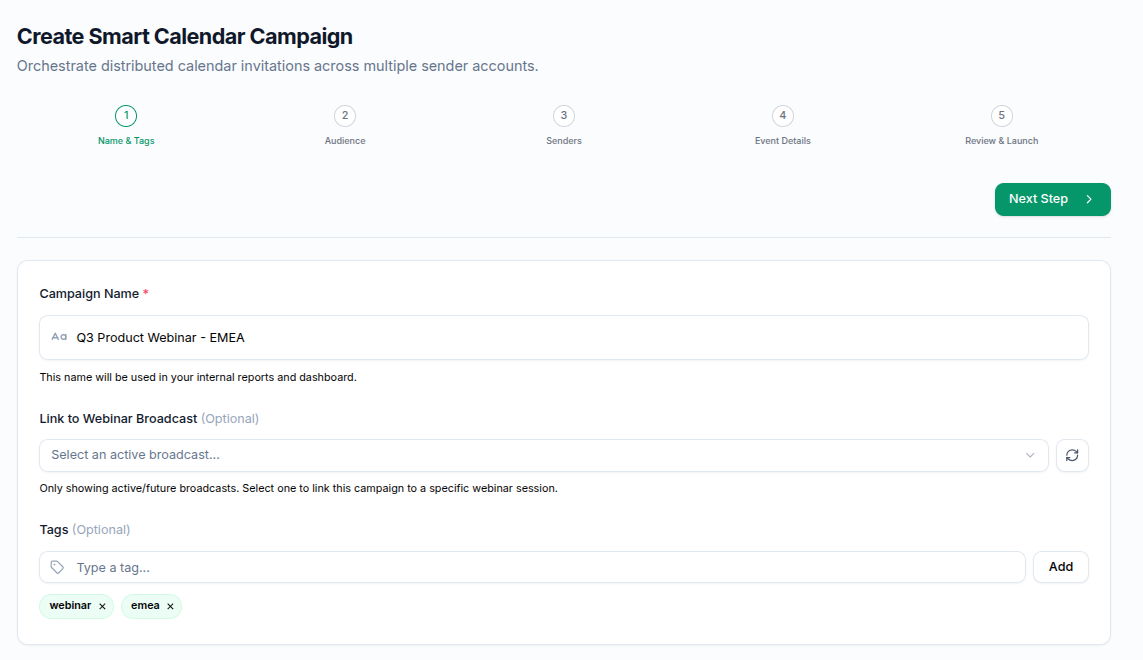
Step 1: Name and Tags
Enter a Campaign Name. This field is required. If you leave it blank you see Please enter a campaign name.
Optionally link the campaign to a synced webinar under Link to Webinar, choosing Zoom or WebinarGeek, and add Tags to group and filter campaigns later. Tags and the webinar link are both optional. With a Zoom webinar linked you can also turn on Register contacts who RSVP yes or maybe. To sync webinars first, see Sync webinars with Zoom or Sync webinars with WebinarGeek.
Step 2: Audience
Select one or more contact lists. You must pick at least one, or you see Please select at least one contact list.
A campaign accepts up to 50,000 contacts across all selected lists. If your selection is larger, you see Your selected lists contain N contacts, which exceeds the maximum of 50,000 contacts per campaign. Please deselect some lists to continue. The running total and an estimated event count appear as you select.
The contact count Tantra uses is after removing anyone on your unsubscribe list and any invalid addresses, so it can be lower than the raw list size.
Step 3: Senders
Select one or more connected sender accounts. You must pick at least one, or you see Please select at least one sender account. Each sender shows a Warmed or New badge and a per-day figure.
Tantra splits your contacts across the selected senders in proportion to each sender's per-day figure. More senders means the audience is spread wider. If you have no connected accounts here, connect one first. See Connect Google Calendar accounts.
Step 4: Event Details
Set the invitation itself:
- Event Title is required. Blank shows
Event title is required. - Time Zone controls how start and end times are read.
- Location / Link holds a Zoom link, Google Meet, or a physical address.
- Event Start Time and Event End Time are all required. Missing values show
Start and end date/time are required, and an end at or before the start showsEnd time must be after start time.
Two switches control personalization. Use Personalized Template lets you insert merge tags such as {{firstName}} and pick a template. Use AI personalization rewrites each invitation from a scrape of the prospect's website and is on by default when personalization is enabled. Full detail is in Personalize your calendar invitations with AI.
A Schedule for later switch lets you set a future start. Left off, you see the note that the campaign starts processing immediately after launch. Scheduling is covered in Schedule, start, and pause a campaign.
Step 5: Review and Launch
Review the event summary, the campaign summary with total contacts, sender accounts, and lists, and the schedule. Select Launch Campaign. A confirmation asks Launch Smart Campaign? with the note that this will schedule calendar events for all selected contacts. Choose Yes, Launch Campaign to confirm.
Field reference
| Field | Step | Required | Rule |
|---|---|---|---|
| Campaign Name | 1 | Yes | Cannot be blank. |
| Link to Webinar Broadcast | 1 | No | Lists synced webinars. |
| Tags | 1 | No | Group and filter campaigns. |
| Contact lists | 2 | Yes | At least one. Up to 50,000 contacts total. |
| Sender accounts | 3 | Yes | At least one connected sender. |
| Event Title | 4 | Yes | Cannot be blank. |
| Time Zone | 4 | No | Sets how times are read. |
| Location / Link | 4 | No | Meeting link or address. |
| Event Start and End Time | 4 | Yes | All four values required. End after start. |
| Use Personalized Template | 4 | No | Enables merge tags and templates. |
| Use AI personalization | 4 | No | On by default when personalization is on. |
| Schedule for later | 4 | No | Sets a future start date and time. |
What happens next
When you launch, Tantra saves the campaign and returns right away with a message that creation has started and it will appear shortly in your list. The heavy work, meaning building events and distribution plans, runs in the background.
Your campaign shows in the Calendar Campaigns tab within a minute or so. If you set a future start it appears as Scheduled. If it starts now it moves toward Active as the first invitations go out. Invitations then continue in batches over the following days. See How invitations are batched and sent and Calendar campaign statuses explained.
Best practices
- Test with a small list first to confirm the event details and sender setup.
- Select more than one sender when your list is large, so the audience is spread across mailboxes.
- Double check the time zone. A wrong zone shifts the start time for every attendee.
Common mistakes
- Selecting a sample or mock list. Create a real contact list first.
- Setting an end time at or before the start time. The wizard blocks this.
- Assuming all invitations send at launch. They are staged in batches.
Troubleshooting
| Symptom | Cause | Fix |
|---|---|---|
| Cannot pass step 1 | Name is blank | Enter a name. The message is Please enter a campaign name. |
| Cannot pass step 2 | No list selected | Pick at least one list: Please select at least one contact list. |
| Step 2 rejects your list | A sample or mock list is selected | The message is Please create real contact lists before creating campaigns. Mock lists cannot be used. Import real contacts. |
| Step 2 blocks on size | More than 50,000 contacts | Deselect lists. The message names the exact count over the limit. |
| Cannot pass step 3 | No sender selected | Pick at least one: Please select at least one sender account. |
| Cannot pass step 4 | Missing or invalid times | Fill all times. Ensure the end is after the start. |
FAQ
How many contacts can one campaign hold?
Up to 50,000 across all selected lists, counted after removing unsubscribed and invalid addresses.
Do I have to personalize the invitation?
No. Personalization is optional. Leave both personalization switches off to send the same invitation to everyone.
Can I edit the campaign after launch?
Build the event carefully before launching. After launch, your main controls are start, pause, and resume. See Schedule, start, and pause a campaign.
Why does my campaign appear before it finishes building?
Tantra returns immediately and finishes creating events in the background, so the campaign shows in your list within a minute while the rest completes.
Can I schedule the campaign for a later date?
Yes. Turn on Schedule for later in step 4 and set the start. The campaign waits as Scheduled until then.
Related articles
Was this article helpful?
Related articles
- How invitations are batched and sentTantra sends calendar invitations in batches over several days. Learn how batching works and why a campaign takes time to finish.
- Schedule, start, and pause a campaignControl when a Tantra calendar campaign runs. Schedule a future start, start it now, or pause and resume sending at any time.
- Personalize your calendar invitations with AIPersonalize each calendar invitation with merge tags and optional AI. Learn how Tantra tailors the invite from each prospect's website.