
Personalize your calendar invitations with AI
Personalize each calendar invitation with merge tags and optional AI. Learn how Tantra tailors the invite from each prospect's website.
Open in Tantra
These open the app in a new tab. You may be asked to sign in.
Overview
You can tailor each calendar invitation to the person receiving it. There are two levels. Merge tags drop known details, like a first name, into the invitation. AI personalization goes further and rewrites the invitation description from a snapshot of the prospect's own website.
Both are optional and set in step 4 of the create wizard.
How it works
Personalization changes how Tantra builds the campaign. Without it, every contact is added to shared events in batches. With personalization on, Tantra creates a separate event for each contact so the invitation can carry that person's details. Each personalized invitation is prepared and sent individually.
Merge tags
Turn on Use Personalized Template in step 4. You can then insert merge tags into the event title and description, such as {{firstName}}. When the invitation is built, each tag is replaced with that contact's value. If a value is missing, the tag resolves to nothing rather than showing raw text. Merge tags and spintax are covered in Merge tags and spintax.
AI personalization
With personalization enabled, a second switch, Use AI personalization, appears and is on by default. When it is on, Tantra visits the prospect's public website, takes a text snapshot, and asks your configured AI model to rewrite the invitation description so it speaks to that specific company. The result is a plain-text calendar description that keeps your dates, links, and structure intact.
A few rules keep this reliable:
- Contacts on personal webmail, such as generic consumer inboxes, are skipped for AI. Tantra cannot derive a company site from those, so they fall back to your template.
- Only part of the scraped page is used to guide the model. The snapshot is trimmed before the model reads it.
- If the AI step fails for a contact, Tantra falls back to the plain template for that invitation, so the person still gets a valid invite.
For the shared mechanics across email and calendar, see AI personalization for email and calendar. For how the website snapshot is gathered, see How website scraping feeds personalization.
Before you start
- Turn on Use Personalized Template in step 4 to enable merge tags and templates.
- To use AI, connect an AI provider, or rely on the built in default. See Connect your own LLM provider.
- For AI to have something to work with, your contacts should have a company website, either set on the contact or derivable from a business email address.
Screens and controls
In step 4 of the wizard:
- Use Personalized Template enables merge tags and the template picker.
- Use AI personalization appears once personalization is on and defaults to on.
- The template picker and description editor let you set the base copy that merge tags and AI build on.
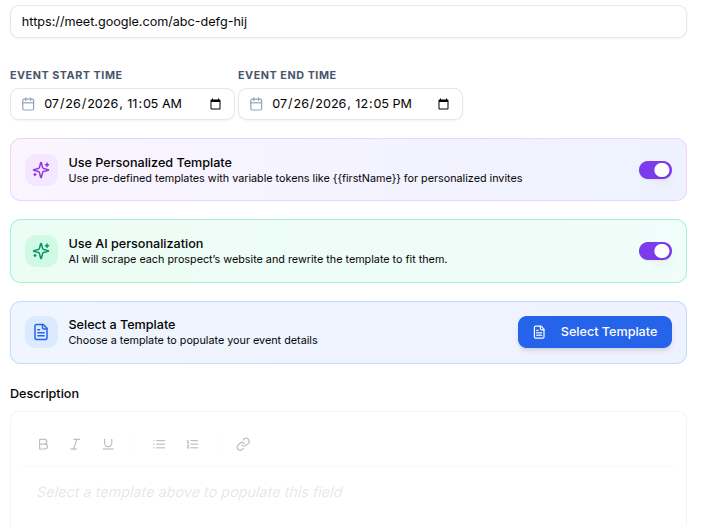
Field reference
| Control | What it does |
|---|---|
| Use Personalized Template | Turns on merge tags and template selection for the invitation. |
| Use AI personalization | Rewrites each description from the prospect's website. On by default. |
Merge tag, for example {{firstName}} | Replaced with each contact's value when the invitation is built. |
| Template and description | The base copy that merge tags and AI build on. |
What happens next
Personalized campaigns take a little longer to prepare, because Tantra builds and sends one event per contact and, for AI invitations, scrapes each website first. Each personalized invitation moves through its own prepare and send steps in the background.
If a website cannot be scraped in time, or the AI step fails, that contact receives the plain template version instead of a failed send. You can tell which invitations used AI and which fell back by reviewing the campaign, since each records its source.
Best practices
- Write a strong base template first. AI improves on good copy, it does not rescue empty copy.
- Keep merge tags to fields you actually have, so invitations do not read as generic.
- Use AI when your list is business contacts with real company websites. It adds little for personal inboxes.
Common mistakes
- Expecting AI to personalize consumer webmail contacts. Those are skipped and fall back to the template.
- Leaving the base description thin. Merge tags and AI still need a solid frame to work from.
- Assuming personalized campaigns send as fast as shared ones. They do more work per contact.
Troubleshooting
| Symptom | Cause | Fix |
|---|---|---|
| Some invitations are not personalized | Contact is on personal webmail, or the site could not be scraped | Those fall back to the template by design. Ensure business contacts have a website. |
| AI personalization is off in step 4 | Personalization is not enabled | Turn on Use Personalized Template first, then the AI switch appears. |
| Personalized copy looks generic | The base template is thin or fields are missing | Strengthen the base copy and confirm merge tag values exist on contacts. |
FAQ
Do I need AI to personalize an invitation?
No. Merge tags alone personalize invitations without AI. AI is an extra layer you can turn off.
Where does the AI get its information?
From a text snapshot of the prospect's public website. See How website scraping feeds personalization.
What happens to contacts without a company website?
Contacts on personal webmail are skipped for AI and receive the plain template version of the invitation.
Will a failed AI step block the invitation?
No. If AI fails for a contact, Tantra sends the template version so the person still gets a valid invite.
Which model does personalization use?
Your configured AI provider, or a built in default if you have not set one. See Connect your own LLM provider.
Related articles
Was this article helpful?
Related articles
- AI personalization for email and calendarTantra rewrites your email and calendar copy per recipient using their website. Turn it on per step or campaign, with template fallback.
- How website scraping feeds personalizationTantra reads a text snapshot of each contact's public website to personalize outreach. See how targets are chosen and when it is skipped.
- Create a smart calendar campaignCreate a Google Calendar invitation campaign in Tantra with the five step wizard. Set the audience, senders, event details, and launch.