
Connect Google Calendar accounts
Review your calendar sender accounts on the Manage Google Calendars page, set per-account options, and disconnect accounts you no longer use.
Some details in this article could not be verified from the product and are marked inline.
Open in Tantra
These open the app in a new tab. You may be asked to sign in.
Overview
The Manage Google Calendars page lists the calendar accounts Tantra can send invitations from. Each row is a mailbox with its connection status, email type, daily calendar limit, shortcode, and default calendar. From here you review those accounts, adjust their per-account options, and disconnect ones you no longer use.
This is the per-user calendar linking view. It is separate from the service account that actually delivers invitations. See How Tantra sends as your mailboxes.
How it works
The account list is drawn from your connected sender accounts. Each account shows whether it is connected, whether it is treated as a new or warmed mailbox, its maximum calendar requests per day, its four character shortcode, and which calendar is the default. You edit these values per account or in bulk, and you can disconnect an account with a confirmation step.
To add a new account through Google sign in, Tantra starts a Google OAuth flow and returns you to a callback page that finishes linking. Tantra completes the Google sign in exchange and adds the linked account. Unable to verify from the available source code. The backend endpoints that generate the sign in URL and exchange the returned code are not present in the source reviewed, so confirm this step works in your environment before relying on it.
Most calendar senders are established through the service account verification flow instead. See Add and verify your senders.
Before you start
- Google OAuth client credentials saved, if you plan to add an account through Google sign in. See Add Google OAuth client credentials.
- At least one connected sender if you want to run a campaign. See Create a smart calendar campaign.
Step-by-step
- In the sidebar, open Manage Google Calendars.
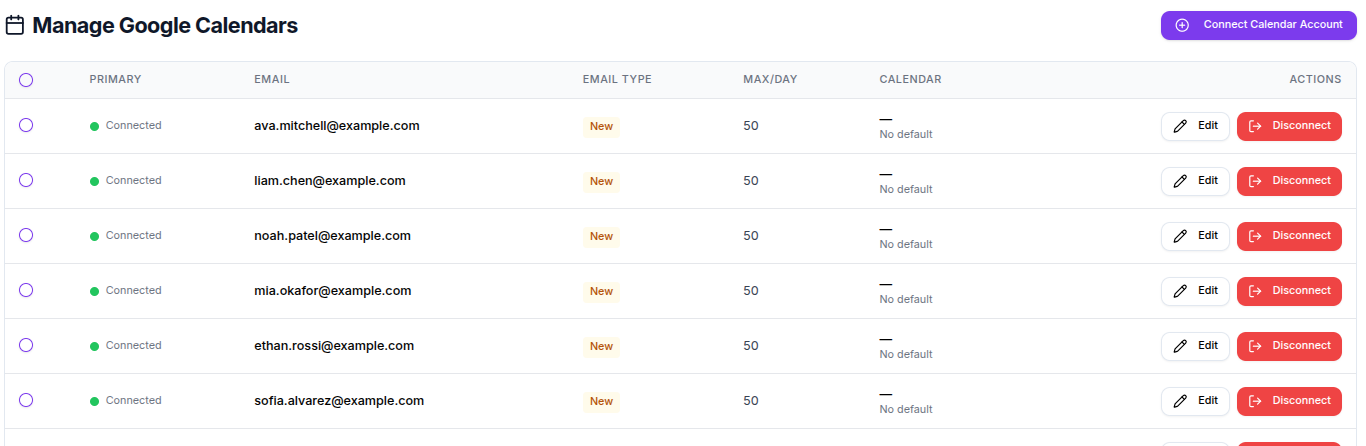
- Review the account table. A green dot with Connected means the account is active. A grey dot with Disconnected means it is not.
- To adjust one account, click Edit on its row and change the options in the dialog.
- To change several accounts at once, select their checkboxes, set values in the bulk bar, then click Apply to selected and confirm.
- To remove an account, click Disconnect and confirm.
Screens and controls
- Connect Calendar Account button at the top, which starts the Google sign in flow to add an account.
- Account table columns: a select checkbox, Primary (a Connected or Disconnected dot), Email, Email Type (Warmed or New), Max/Day, Calendar (the default calendar), and Actions with Edit and Disconnect.
- Edit Calendar Account dialog with a read only Email, an Email Type choice of New Email or Warmed Up Email, Max Calendar Requests / Day, Calendar Shortcode (4 chars) with a Generate button, and a Default Calendar selector.
- A bulk bar that appears when you select accounts, with Email type, Max/day, and Apply to selected, followed by a Confirm bulk changes dialog.
Field reference
| Field | What it does | Rules |
|---|---|---|
| Email Type | Marks the mailbox as new or warmed, which sets its daily ceiling | New or warmed |
| Max Calendar Requests / Day | Caps daily calendar API requests for the account | New allows up to 50, warmed up to 300, minimum 1 in the edit dialog |
| Calendar Shortcode (4 chars) | A unique code for this calendar used in email links | Exactly four uppercase letters or numbers, matching ^[A-Z0-9]{4}$ |
| Default Calendar | The calendar new events are created on | Chosen from the account's calendars |
In the bulk bar, the allowed maximum per day is 20 to 50 for new accounts and 20 to 300 for warmed accounts. Values outside the range are clamped to policy, and the confirm dialog previews any clamped values.
What happens next
- Editing an account and saving updates that account's options, and the row reflects the saved values.
- Setting a shortcode that another account already uses shows the error
This sender ID is already in use, and you must fix it before saving. - Disconnecting an account that is used in campaigns shows a warning and a Disconnect Anyway option. After disconnecting, calendar events created with that account are marked as disconnected.
- The Manage Google Calendars > Connect URL is a redirect. It sends you to the Connectors page rather than showing its own screen.
For the Google sign in add flow, the callback page shows Processing Google Calendar connection, then returns you to Manage Google Calendars on success. If the sign in returns without the expected values, it shows Missing authorization code or state from Google redirect. and returns you with an error status.
Best practices
- Give each account a distinct shortcode so links stay traceable.
- Mark genuinely warmed mailboxes as warmed only when they can handle the higher daily volume.
- Before a large campaign, confirm each sender shows Connected.
Common mistakes
- Reusing a shortcode across two accounts, which blocks the save.
- Setting a per day value above the policy ceiling and expecting it to stick. It is clamped.
- Disconnecting an account that active campaigns depend on without checking the warning first.
Troubleshooting
| Symptom | Cause | Fix |
|---|---|---|
Shortcode shows This sender ID is already in use | Another account already uses that code | Pick a different four character code or click Generate |
| Callback shows Connection Failed | The Google sign in exchange did not complete | Confirm your OAuth credentials and redirect URIs, then try again. See Add Google OAuth client credentials |
Callback shows Missing authorization code or state from Google redirect. | Google returned without the expected parameters | Start the connect flow again from Manage Google Calendars |
| Account still shows Disconnected after connecting | The sender is not linked to a working service account | Verify the sender through the service account flow. See Add and verify your senders |
FAQ
Is this the same as setting up sending?
No. Invitations are delivered through a Google service account with domain-wide delegation. This page manages the calendar sender accounts and their options. See How Tantra sends as your mailboxes.
What is the shortcode for?
It is a unique four character identifier for the calendar, used inside email links so you can tell which calendar produced a link.
Why can I not raise the daily limit past a certain number?
New accounts are capped at 50 per day and warmed accounts at 300. Higher values are clamped to those ceilings.
What happens to events if I disconnect an account?
Calendar events created with that account are marked as disconnected, and campaigns that rely on it may be affected. The confirmation dialog warns you before you proceed.
Where does the Connect link under Manage Google Calendars go?
That path redirects to the Connectors page rather than showing a screen of its own.
Related articles
Was this article helpful?
Related articles
- Add Google OAuth client credentialsStore your own Google OAuth Client ID and Client Secret so Tantra can connect Google Calendar accounts for you.
- Create a smart calendar campaignCreate a Google Calendar invitation campaign in Tantra with the five step wizard. Set the audience, senders, event details, and launch.