
Connect your own LLM provider
Bring your own Cerebras, OpenRouter, or Novita key to Tantra, test the connection, pick a model, and set the default used for AI personalization.
Open in Tantra
These open the app in a new tab. You may be asked to sign in.
Overview
Tantra's AI personalization runs on a large language model, and you bring your own account for it. You add an API key from a supported provider, pick a model, and mark one provider as your default. That default is what Tantra uses to personalize campaigns. This article walks through connecting a provider and choosing your default.
Supported providers are Cerebras, OpenRouter, and Novita.
How it works
You configure each provider on its own page with its own API key and model. Your key is stored encrypted at rest and is never shown back to you in full. Tantra displays only the last few characters so you can confirm which key is saved.
Exactly one provider is your default at any time. The default is the one Tantra uses when it generates personalized outreach. Turning on the default for one provider turns it off for the others.
Connecting a provider is only needed for campaign AI personalization. The template editor's Generate with AI and Enhance buttons use Tantra's built-in AI and work without any provider connected. See Create and manage templates.
Before you start
- Create an account with Cerebras, OpenRouter, or Novita and generate an API key there.
- Decide which provider you want as your default for personalization.
Step-by-step: connect a provider
- Open Connectors, then LLM Providers.
- On the provider card, click Set up. For an already-configured provider the button reads Configure.
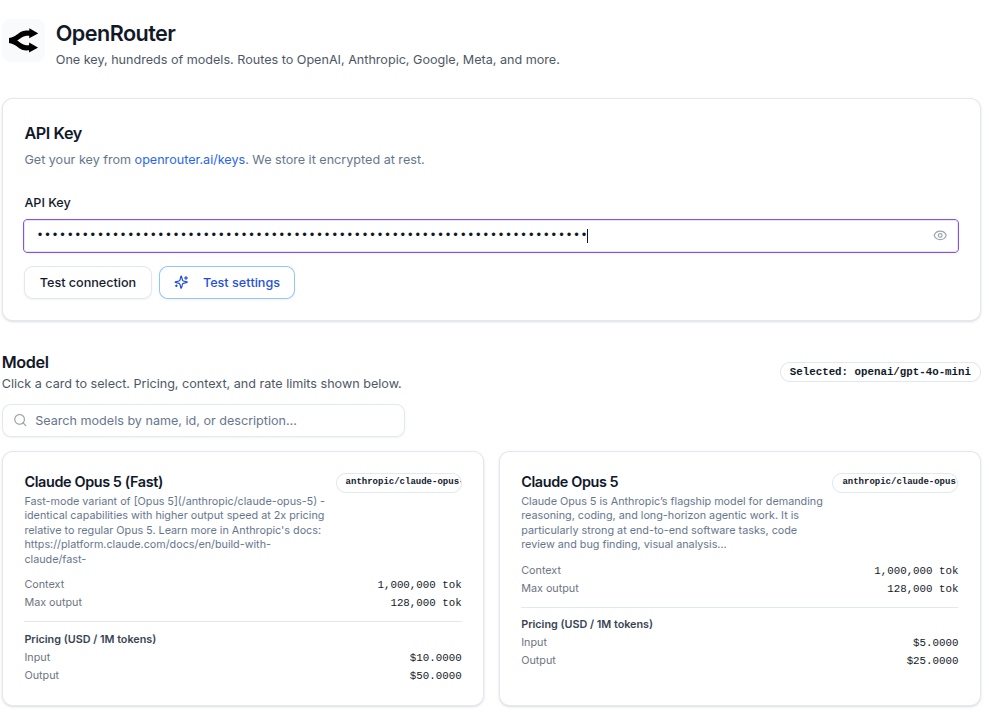
- Paste your key into the API Key field. You can show or hide it with the eye button.
- Click Test connection. A success message reports how many models are available and how long the check took.
- Choose a model from the model list. You can search and page through the cards, which show pricing and rate limits.
- Click Save settings.
Step-by-step: set your default
- Return to the LLM Providers page, or stay on the provider page.
- On the provider page, click Set as default. On the hub, use the Default provider switch on the card.
- The provider is marked with a Default badge. This is the provider used for personalization.
Test that personalization works
The provider page has a Test settings button. It runs the full personalization flow once against a test email or domain, so you can see the model output before you use the provider on a real campaign. Use this after saving a key and picking a model.
Screens and controls
- LLM Providers hub: one card per provider showing Configured or Not configured, a Default provider switch, and a Set up or Configure button. The hub also has an AI auto-unsubscribe toggle and a shared system prompts editor.
- Provider page: the API Key field, Test connection, Test settings, Remove key, an Active toggle, Set as default, and the model picker.
Field reference
| Control | What it does |
|---|---|
| API Key | Your provider key. Stored encrypted at rest. When a key is saved, the label changes to Replace API key (optional) and you can leave it blank to keep the existing key |
| Test connection | Pings the provider and reports the number of models available and the response time |
| Test settings | Runs the personalization flow once so you can preview output |
| Model picker | Selects which model this provider uses |
| Active | Enables or disables this provider. The default provider cannot be deactivated |
| Set as default | Makes this the provider used for all personalization |
| Remove key | Deletes this provider's configuration |
What happens next
Saving takes effect immediately. Once a provider is your default with a valid key and a selected model, Tantra uses it the next time it personalizes a campaign message. Personalization itself runs in the background as messages are prepared, so you will not see output the instant you save. Use Test settings to confirm the provider works before launching.
If you remove a provider or you have no default, campaign personalization falls back to your plain template. See AI personalization for email and calendar.
Best practices
- Test the connection before saving, so you catch a bad key early.
- Run Test settings once to see real personalization output for your chosen model.
- Keep exactly the model you intend as default. Pricing and rate limits are shown on each model card.
- Keep your API key private. Treat it like a password.
Common mistakes
- Saving without a key on a new provider. You see a prompt to enter your key first.
- Configuring a provider but forgetting to set it as the default, so personalization has no provider to use.
- Trying to deactivate the default provider. Set a different default first, then deactivate.
- Expecting the template editor's AI buttons to require a provider. They do not.
Troubleshooting
| Symptom | Cause | Fix |
|---|---|---|
| "Enter an API key to test" | You clicked Test connection with no saved or typed key | Paste a key, then test |
| A save is blocked asking for your key | You tried to save a new provider without a key | Enter the API key, then save |
| Test connection fails | The key is wrong or the provider is unreachable | Recheck the key at the provider and try again |
| "Default cannot be deactivated" | You tried to turn off the default provider | Set another provider as default first |
| Campaigns are not personalized | No default provider, or its key is invalid | Set a valid default and confirm with Test settings |
FAQ
Which providers can I connect?
Cerebras, OpenRouter, and Novita.
Is my API key safe?
Yes. Keys are stored encrypted at rest and never shown back in full. Only the last few characters are displayed.
Do I need a provider to use the template editor's AI?
No. Generate and enhance in the template editor use Tantra's built-in AI. A provider is only needed for campaign personalization.
How many providers can be the default?
One at a time. Setting a new default turns the previous one off.
Why can I not deactivate my default provider?
The default must stay active so personalization always has a provider. Choose another default first.
How do I preview what a provider produces?
Use Test settings on the provider page to run the personalization flow once.
Related articles
Was this article helpful?