
Create and manage API keys
Create a Tantra API key, copy it once at creation, use it in the X-API-Key header, and revoke keys you no longer need.
Open in Tantra
These open the app in a new tab. You may be asked to sign in.
Overview
An API key lets programs call the Tantra API on your behalf without a browser login. You use a key for scripts, integrations, and the Tantra MCP server. This article covers creating a key, copying it the one time it is shown, and revoking a key you no longer need.
Keys are for headless access. If you only use Tantra in the browser, you do not need one.
How it works
You create a key on the API Keys page. Tantra generates a secret value that starts with tk_live_. The full value is shown to you once, at creation. Tantra stores only a hashed copy, so it can check a key you present later but can never display the original again.
To use a key, your program sends it in the X-API-Key request header on every call to the Tantra API. Tantra looks up the key, confirms it is active and not expired, and treats the request as coming from your account.
A key stays valid until it expires, if you set an expiry, or until you revoke it. Revoking is immediate.
Before you start
- You need to be signed in to Tantra in the browser to create a key.
- Have a safe place to store the secret, such as a password manager or your integration's secret store. You cannot retrieve it later.
Step-by-step: create a key
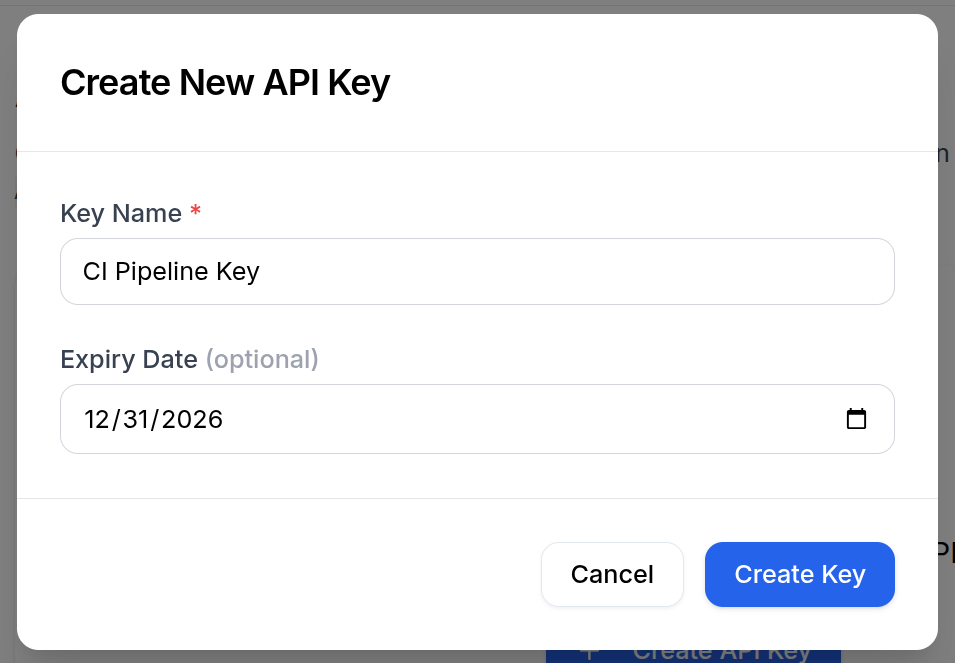
- Open the API Keys page from the app navigation.
- Click Create API Key.
- Enter a Key Name. Use a name that says where the key is used, for example
CI Pipeline Key. The name has a 100 character limit. - Optionally set an Expiry Date. Leave it blank for a key that never expires.
- Click Create Key.
Step-by-step: copy the key once
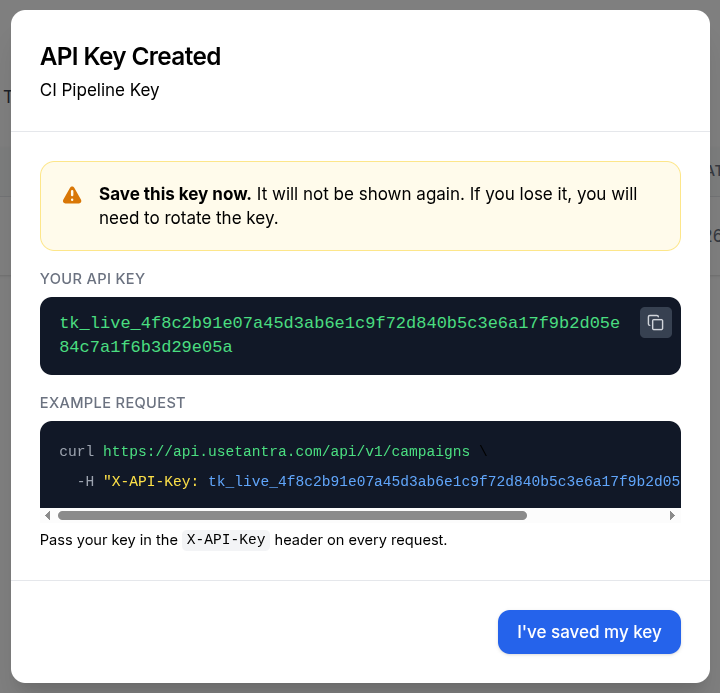
After you create a key, Tantra shows the full tk_live_ value in an API Key Created dialog. This is the only time you see it.
- Click the copy button next to the key, or select and copy the value.
- Paste it straight into your password manager or your integration's configuration.
- Click I've saved my key to close the dialog.
The dialog warns: Save this key now. It will not be shown again. If you lose it, create a new key and revoke the old one.
Step-by-step: revoke a key
- On the API Keys page, find the key in the table by its Name.
- Click the trash icon in the Actions column.
- Confirm in the Revoke API Key? dialog by clicking Revoke Key.
Revoking is permanent and cannot be undone. Any integration using that key stops working right away.
Screens and controls
The API Keys table lists every active key with its Name, a masked Key prefix (the first characters followed by ...), Last Used, Created, and Expires. The full secret is never shown in this table. Only the create dialog shows it, and only once.
Field reference
| Field | Required | Notes |
|---|---|---|
| Key Name | Yes | Free text, up to 100 characters. Shown in the keys table so you can tell keys apart. |
| Expiry Date | No | A future date. After it passes, the key stops working. Leave blank for no expiry. |
What happens next
A key works as soon as it is created. Point your integration at the Tantra API and send the key in the X-API-Key header. Example request:
curl https://api.usetantra.com/api/v1/campaigns \
  -H "X-API-Key: tk_live_your_key_here"
The Last Used column updates after the key makes a call. It refreshes at most once a minute, so a very recent call may take a moment to show.
Best practices
- Give each integration its own key with a clear name, so you can revoke one without breaking the others.
- Store the secret in a password manager or secret store. Treat it like a password.
- Set an expiry on keys that are only needed for a while.
- Revoke keys you no longer use.
Common mistakes
- Closing the create dialog before copying the key. The value is not shown again. If this happens, revoke the key and create a new one.
- Committing a
tk_live_value into source control. Keys are live secrets. Keep them out of your repository. - Putting the key in the wrong header. Tantra reads the
X-API-Keyheader.
Troubleshooting
| Symptom | Cause | Fix |
|---|---|---|
Requests return Invalid API key | The key is wrong, was revoked, or was mistyped | Check the value, or create a new key and update your integration |
Requests return API key has expired | The key passed its expiry date | Create a new key and update your integration. Consider leaving expiry blank |
| You lost the secret | The full value is only shown once at creation | Revoke the old key and create a new one |
FAQ
Where do I put the key in a request?
In the X-API-Key header on every call to the Tantra API.
Can I see a key again after creating it?
No. Tantra stores only a hashed copy and shows the full value once, at creation. If you lose it, create a new key.
Can I limit a key to certain permissions?
The create screen asks only for a name and an optional expiry. A valid key authenticates as your account and can reach the Tantra API. To limit your exposure, set an expiry and revoke keys you no longer use.
What does the prefix in the table mean?
The table shows the first characters of the key followed by ... so you can recognize a key without exposing the secret. The full value is never shown there.
What happens to integrations when I revoke a key?
They stop working immediately. Any program using that key will get an authentication error until you give it a new key.
Can I rotate a key instead of deleting it?
Rotation is available in the Tantra API, which revokes the old key and issues a new one with the same settings. In the browser, the simplest path is to create a new key and revoke the old one.
Related articles
Was this article helpful?
Related articles
- Connect the Tantra MCP serverInstall the Tantra MCP server, give it your API key, and use Tantra campaigns, contacts, and templates as tools inside Claude or Cursor.
- Receive outbound webhooksRegister an endpoint URL to receive Tantra webhooks, from calendar RSVP counts to cold email events, and learn how delivery and retries work.