
Upload your service account to Tantra
Upload your service account JSON files to Tantra, tag them, and manage them. Files are encrypted at rest and can be soft-deleted.
Open in Tantra
These open the app in a new tab. You may be asked to sign in.
Overview
After you create a service account and grant it delegation, you upload its JSON key to Tantra. Tantra encrypts the file at rest and uses it to send as your mailboxes. You can upload several service accounts and tag them for organization.
Before you start
- One or more service account JSON key files. See Create a Google service account.
- Domain-wide delegation granted to each account. See Grant domain-wide delegation and scopes.
Step-by-step
- In the left sidebar, click Connectors, then open Google Service Accounts.
- In the Upload Service Accounts drop zone, drag and drop your files, or click Browse files. You can upload up to 30
.jsonfiles at once. - Optionally enter Tags (comma separated) to label this batch, for example
sales-domain. - Click Upload. Tantra confirms with Upload successful and reports how many accounts were created and updated.
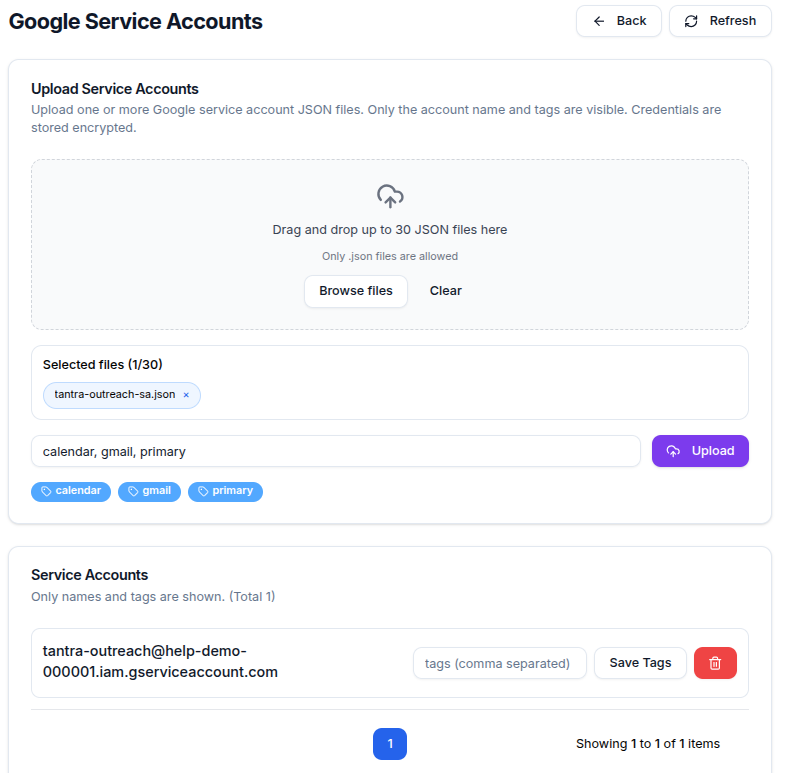
Screens and controls
- Upload Service Accounts drop zone, labeled
Drag and drop up to 30 JSON files here. Only.jsonfiles are accepted. - Browse files and Clear buttons, and a selected-files counter shown as
{count}/30. - Tags (comma separated) input and the Upload button. Upload is disabled until at least one file is selected.
- Each uploaded account shows its name, tag badges, an editable tags field with Save Tags, and a delete (trash) action.
Field reference
| Field | Required | Accepted values | Validation | What it does |
|---|---|---|---|---|
| Files | Yes | .json only, up to 30 | Non-JSON files are skipped with Only .json files are allowed.; duplicates by name and size are removed | The service account keys Tantra uses to send |
| Tags | No | Comma-separated text | None | Labels to group and find accounts |
What happens next
Uploaded files are encrypted at rest. Uploading a service account does not start sending on its own. Next, add and verify the sender mailboxes you want to send from. See Add and verify your senders.
Common mistakes
- Uploading a file that is not the JSON key. Only
.jsonkey files are accepted. - Uploading before granting delegation. The upload will succeed, but verification will fail until delegation is in place.
Troubleshooting
| Symptom | Cause | Fix |
|---|---|---|
| Some files were skipped on upload | They were not .json, or were duplicates | Re-select only JSON key files. You will see Only .json files are allowed. for the rest |
| Cannot click Upload | No files are selected | Add at least one file. A No files selected message appears otherwise |
| Need to remove an account | You are decommissioning a service account | Use the delete (trash) action. You will be asked to confirm: Disconnect this service account? This will soft delete it. |
FAQ
How many service accounts can I upload at once?
Up to 30 JSON files in a single upload.
Are my service account files stored securely?
Yes. Tantra encrypts the files at rest.
What happens when I delete a service account?
It is soft-deleted after a confirmation prompt. Senders that relied only on it will need to be re-verified against another account.
Do I need to re-upload after granting delegation?
No. If you uploaded first, just verify your senders once delegation is in place.
Related articles
Was this article helpful?
Related articles
- Add and verify your sendersPaste the mailboxes you want to send from and verify them against your uploaded service accounts using domain-wide delegation.
- Grant domain-wide delegation and scopesAuthorize your Tantra service account in the Google Admin console with the exact OAuth scopes needed to send email and calendar invites.
- Create a Google service accountCreate a Google Cloud service account, enable the Gmail and Calendar APIs, and download the JSON key that Tantra uses to send as your mailboxes.