
Build an email sequence
Use Tantra's six-step wizard to build a cold email sequence, pick senders and audience, set limits, and launch or schedule your campaign.
Open in Tantra
These open the app in a new tab. You may be asked to sign in.
Overview
The email outreach builder is a six-step wizard. You name the campaign, choose your audience and senders, build the steps, set scheduling and limits, then review and launch. This article covers the whole flow. The step editor itself has its own guide in Sequence steps, delays, and personalization modes.
How it works
The wizard builds a draft in your browser as you go. Nothing is saved to Tantra until you launch. When you launch, Tantra creates the campaign, adds each step, then starts it. Starting enrolls your contacts and hands them to the scheduler.
Before you start
You need at least one connected Gmail-capable sender and at least one contact list. If you have neither, set them up first:
Step-by-step
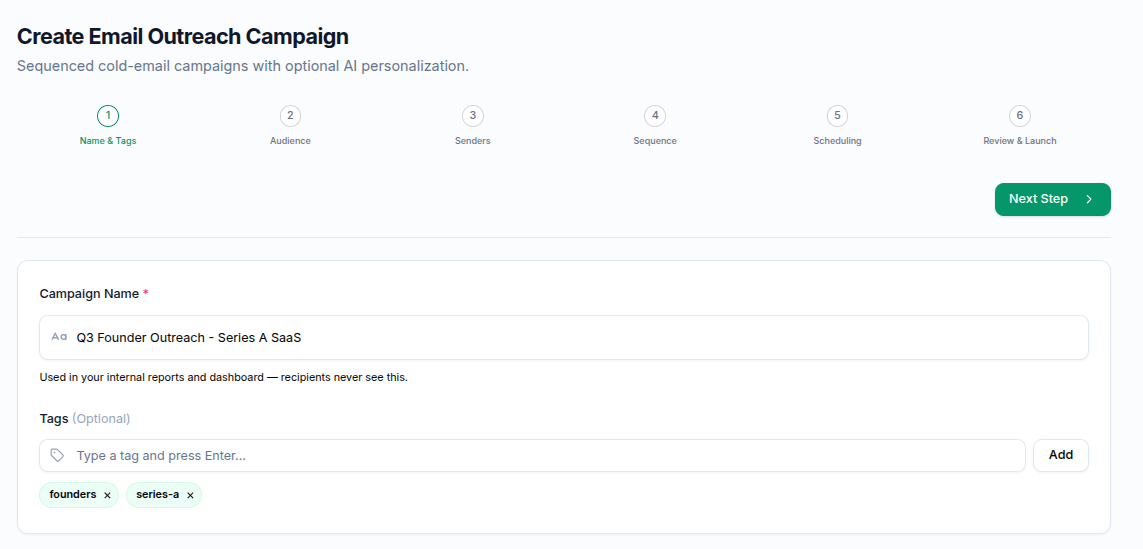
Open Create Email Outreach Campaign from the campaigns area. The top stepper shows six steps. Use Next Step and Back to move. Each step is checked before you advance.
1. Name and tags
Enter a Campaign Name. This is required and recipients never see it. Add optional Tags to organize campaigns. Press Enter or Add to commit a tag.
If you continue without a name, Tantra shows Please enter a campaign name.
2. Audience
Pick one or more contact lists. Search with Search lists..., then select lists to enroll. The panel shows how many contacts are selected across the chosen lists and notes they Will be enrolled at launch. If you have no lists yet, use Import Contacts or Create List.
You must select at least one list. Otherwise Tantra shows Please select at least one contact list.
3. Senders
Choose the mailboxes that will send. Only mailboxes that are Gmail-capable and connected appear here. Each card shows a Warmed or New badge, the mailbox daily volume, and whether a signature is set. Use Select All or Deselect All to pick quickly.
You must select at least one sender. Otherwise Tantra shows Please select at least one sender account.
If no mailboxes appear, the panel reads No Gmail-capable accounts with a link to Connect a Sender.
4. Sequence
Build your steps. Each step is a card with a subject and body. Step 1 sends on enrollment. Later steps wait a set number of days and can send as replies on the same thread. You can switch a step between a Predefined template and AI-personalized, insert merge fields, and reorder or delete steps.
Every step needs a subject and a body. If one is missing, Tantra shows Step N: subject is required. or Step N: email body is required. For full detail on steps, delays, and personalization, see Sequence steps, delays, and personalization modes.
5. Scheduling
Choose Start now or Schedule for later. Set the sending window, per-mailbox caps, sender rotation, and click tracking. These controls decide how fast and when your emails go out. See Sending windows and daily limits for what each control does.
The wizard checks that you selected at least one sending day and that the start hour is before the end hour. If you chose to schedule, it also checks that you picked a date and time.
6. Review and launch
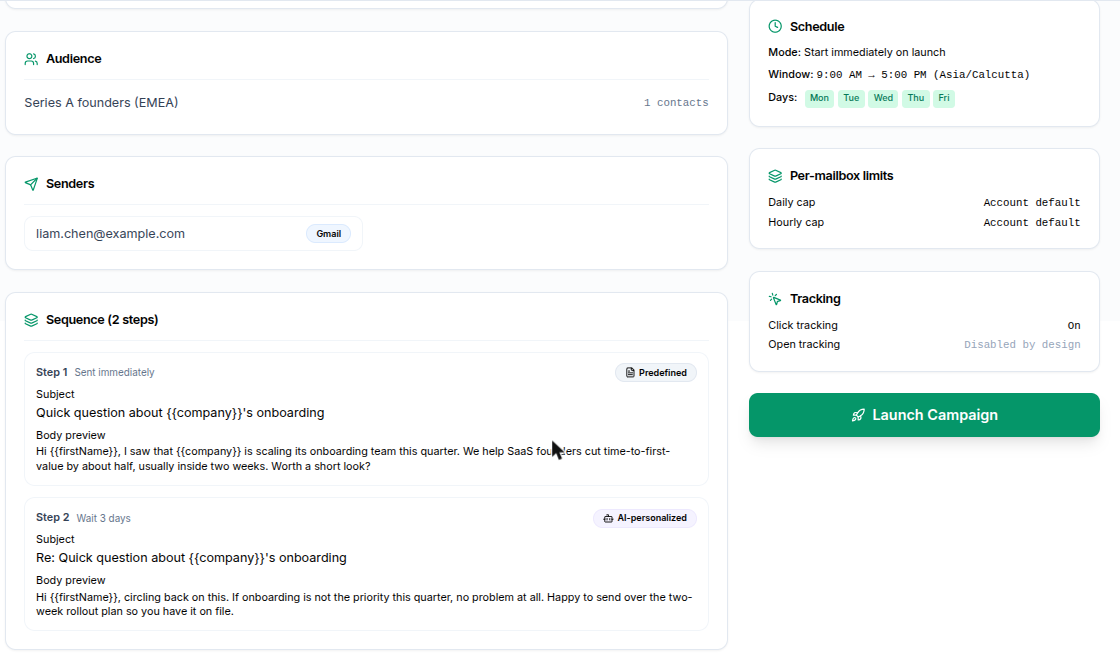
Review a summary of the campaign, audience, senders, and sequence. The review reminds you that a one-click unsubscribe link is appended automatically and cannot be removed, and that open tracking is disabled by design. Select Launch Campaign to finish.
Field reference
| Field | Where | Rules |
|---|---|---|
| Campaign Name | Step 1 | Required. Up to 200 characters. Not shown to recipients. |
| Tags | Step 1 | Optional. Any number. |
| Contact lists | Step 2 | At least one required. |
| Senders | Step 3 | At least one required. Gmail-capable and connected only. |
| Steps | Step 4 | At least one. Each needs a subject and body. Up to 65 steps. |
| Delay per step | Step 4 | 0 to 365 days. Step 1 is always 0. |
| Launch mode | Step 5 | Start now or Schedule for later. |
| Sending window | Step 5 | Timezone, days of week, start hour, end hour. |
| Per-mailbox caps | Step 5 | Optional. Daily 1 to 2000. Hourly 1 to 500. |
| Sender rotation | Step 5 | Round-robin, fill first, or random. |
| Track link clicks | Step 5 | On by default. |
What happens next
When you select Launch Campaign with Start now:
- Tantra creates the campaign, adds every step, then starts it.
- Your contacts are enrolled. Tantra de-duplicates by email address, removes anyone on your unsubscribe or suppression list, and sets aside addresses that fail validation into a Needs Review bucket on the campaign.
- The campaign status becomes
activeand a success message reports how many contacts were enrolled. - Step 1 does not send instantly. Within about a minute, the scheduler picks up each enrollment, confirms your sending window is open, reserves quota on the mailbox, then sends. Outside your window, the step waits until the window opens.
If you chose Schedule for later, the campaign is saved with status scheduled and no contacts are enrolled yet. When the scheduled time arrives, Tantra activates it automatically and enrollment begins.
Watch progress on the campaign page. See Enrollment lifecycle and statuses.
Best practices
- Warm your mailboxes before a large send. See Warm up your sending mailboxes.
- Start with a small list to confirm copy and deliverability, then scale.
- Keep step 1 short and human. Long first emails hurt replies.
- Spread volume across several mailboxes rather than pushing one hard.
Common mistakes
- No connected senders. If Step 3 is empty, connect and verify a Gmail-capable mailbox first.
- Launching outside your sending window. With Start now, sends still wait until the window opens. That is expected, not a failure.
- Assuming instant delivery. The first step sends on the next scheduler pass, not the moment you click launch.
Troubleshooting
| Symptom | Cause | Fix |
|---|---|---|
| Please enter a campaign name. | Step 1 name is blank. | Enter a campaign name. |
| Please select at least one contact list. | No list chosen in Step 2. | Select at least one list. |
| Please select at least one sender account. | No sender chosen in Step 3. | Select a Gmail-capable connected mailbox. |
Step N: subject is required. | A step has no subject. | Add a subject to that step. |
Step N: email body is required. | A step has an empty body. | Add body text to that step. |
| No senders appear in Step 3 | No Gmail-capable connected mailbox. | See Add and verify your senders. |
| Campaign launched but nothing has sent | Outside your sending window, or quota reached. | Wait for the window to open. See Sending windows and daily limits. |
FAQ
Is my draft saved if I leave the wizard? No. The draft lives in your browser and resets when you leave. Nothing is stored until you launch.
How many steps can a sequence have? Up to 65 steps.
What is the maximum delay between steps? 365 days per step. Step 1 always sends immediately on enrollment.
Can I schedule a campaign to start next week? Yes. Choose Schedule for later in Step 5 and pick a date and time. Tantra activates it automatically.
How many contacts can I enroll? Up to 50000 per campaign.
Can I edit steps after launch? Editing a running campaign's structure is restricted to protect enrolled contacts. Manage individual enrollments from the campaign page instead. See Enrollment lifecycle and statuses.
Related articles
Was this article helpful?
Related articles
- Sequence steps, delays, and personalization modesConfigure cold email steps in Tantra, set delays between them, choose template or AI personalization, and control reply threading.
- Sending windows and daily limitsControl when Tantra sends cold email with a sending window, and cap volume per mailbox with enforced daily and hourly limits.
- Enrollment lifecycle and statusesUnderstand how a contact moves through a Tantra cold email sequence, what each enrollment status means, and how to manage enrollments.