
Suppression lists and unsubscribes
Block emails, domains, TLDs, and role mailboxes so Tantra never sends to them, and see how unsubscribes and bounces are suppressed automatically.
Open in Tantra
These open the app in a new tab. You may be asked to sign in.
Overview
Your suppression list is the set of recipients Tantra must never contact. It is checked before every send, so anything on it is blocked whether you run calendar or cold email campaigns. You manage the list on the Unsubscribe Management page, and Tantra also adds entries automatically when someone unsubscribes or an address hard-bounces.
How it works
Tantra checks a recipient against your list right before sending. You can block at four levels, each with its own tab.
- Emails, a specific address such as
user@example.com. - Domain Level, every address at a domain such as
example.com. - TLD Level, every address under a top-level domain such as
.com, including multi-level ones such as.gov.uk. - Role Mailboxes, a generic local part such as
info,sales, orcareers, matched across all domains.
For each recipient, Tantra checks the exact email, its domain, every top-level suffix of that domain, and its role local part. A match at any level blocks the send.
Cold email adds a second, automatic layer. Hard bounces and spam complaints are suppressed for you, and that list is also checked before every send. An address that hard-bounces from any of your mailboxes is suppressed across your whole account.
Step-by-step
Block addresses by hand
- In the left sidebar, open Unsubscribe Management.
- Pick the tab that matches what you want to block: Emails, Domain Level, TLD Level, or Role Mailboxes.
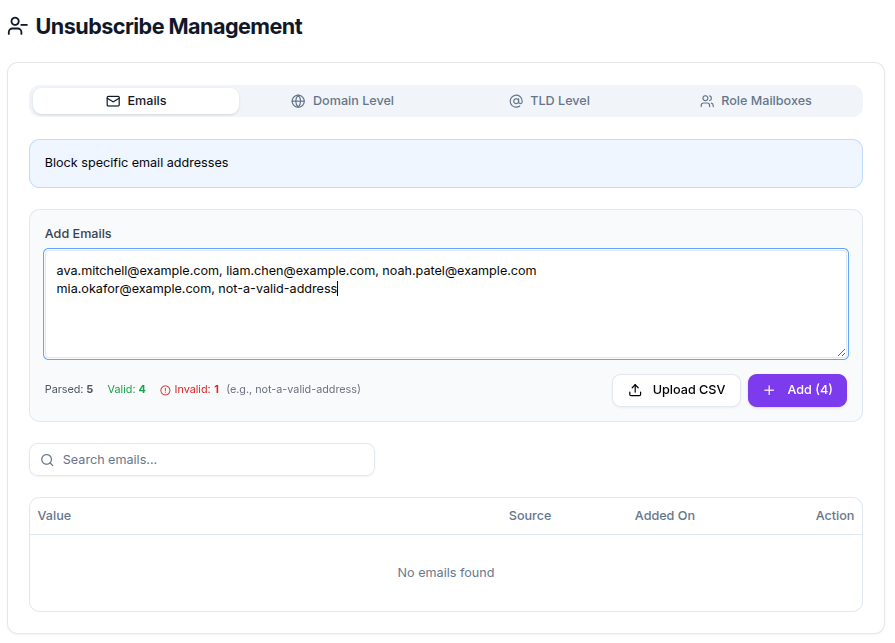
- Paste one or more values into the box. Separate them with new lines, commas, or spaces. Tantra shows live Parsed, Valid, and Invalid counts as you type.
- Click Add to save the valid entries.
Upload a CSV of values
- On the tab you want, click Upload CSV and choose a
.csvfile. - Tantra reports the result, for example
Added 120 entries (8 duplicates skipped).
Remove an entry
- Find the value in the table and click the trash icon.
- In the Remove from Unsubscribe List? dialog, confirm. This lets that address, domain, TLD, or role mailbox receive messages again.
Screens and controls
- Four tabs: Emails, Domain Level, TLD Level, and Role Mailboxes.
- A bulk Add box with live parsed, valid, and invalid counts, plus a per-tab Upload CSV button.
- A search box and a table showing Value, Added On, and a trash action. The Emails tab also shows a Source column.
- Pagination with 10, 25, or 50 rows per page and a total count.
Field reference
| Tab | Blocks | Example |
|---|---|---|
| Emails | One exact address | user@example.com |
| Domain Level | All addresses at a domain | example.com |
| TLD Level | All addresses under a top-level domain | .com or .gov.uk |
| Role Mailboxes | A local part across every domain | info |
What happens next
New entries take effect for future sends right away, because the list is checked at send time rather than only when a campaign is built. On the Emails tab, the Source column shows how each entry got there: Manual for ones you added, 1-click for a one-click header unsubscribe, Footer link for the unsubscribe link in an email, and Bounce auto for an address suppressed automatically. Removing an entry allows that recipient to be contacted again.
Best practices
- Block at the domain or TLD level when you want to exclude a whole company or region in one entry.
- Import known do-not-contact addresses with Upload CSV before your first send.
- Leave automatic bounce and complaint suppression in place. It protects your domain reputation.
Common mistakes
- Adding an address in the wrong tab. An email typed into the Domain Level tab is treated as invalid.
- Removing an automatically suppressed address that hard-bounced. It is likely to bounce again.
Troubleshooting
| Symptom | Cause | Fix |
|---|---|---|
| Values show as invalid | The value does not match the tab format, for example a domain in the Emails tab | Move it to the correct tab and re-add |
| A blocked person still seems targeted | Suppression is applied at send time, not at list build time | The send itself is skipped, so no message is delivered |
| An address keeps getting suppressed | It hard-bounced, so it was auto-suppressed | Confirm the address is valid before removing the entry |
Invalid type. Must be mail, domain, tld, or role | The request used an unknown tab type | Use one of the four provided tabs |
FAQ
When is the suppression list checked?
Before every send. This applies to both calendar and cold email campaigns, so a suppressed recipient is never contacted.
What is the difference between the list I manage and automatic suppression?
The list on the Unsubscribe Management page is what you and your recipients control, such as manual entries and unsubscribes. Automatic suppression is added by Tantra for hard bounces and spam complaints. Both are checked before sending.
How do I block an entire company?
Add its domain on the Domain Level tab. Every address at that domain is then blocked.
Can I bulk load suppressions?
Yes. Use Upload CSV on the relevant tab. Tantra reports how many were added and how many duplicates were skipped.
How do recipients remove themselves?
Through the unsubscribe link in your emails, which adds them to this list automatically. See One-click unsubscribe.
Related articles
Was this article helpful?
Related articles
- One-click unsubscribeSee how Tantra adds RFC 8058 one-click unsubscribe headers and a public confirmation page so recipients can opt out and land on your suppression list.
- Manage contacts and listsAdd, filter, and delete contacts, organize them into lists, and use lists to target your calendar and cold email campaigns.