
Track RSVPs and campaign results
See who accepted, declined, or has not answered your calendar invitations. Learn where RSVP counts appear and how often they refresh.
Open in Tantra
These open the app in a new tab. You may be asked to sign in.
Overview
The response to a calendar invitation is the RSVP. Tantra tracks four outcomes for every attendee: accepted, declined, marked maybe, or no answer yet. You see these counts on the Campaigns list, on each campaign's detail page, and, for webinar reporting, on the Reports page.
How it works
After invitations go out, Tantra checks each event's RSVPs on a schedule. Roughly every 10 minutes, a background process fetches the current attendee responses from Google, tallies them into accepted, declined, tentative, and no answer, and stores the result. To avoid redundant checks, an event that was refreshed very recently is skipped on the next cycle.
Because this runs on a cycle, a response can take a few minutes to appear in Tantra after a prospect answers. The counts are near real time, not instant.
The four RSVP outcomes
| Google response | Shown in Tantra as |
|---|---|
| Accepted | Yes |
| Declined | No |
| Tentative | Maybe |
| No response | Waiting or Awaiting |
Screens and controls
You can view results in three places.
The Campaigns list
On the Calendar Campaigns tab, each row shows live counts under Yes, Maybe, No, and Waiting, alongside Sent and Not Sent. This is the quickest overview across all your campaigns.
The campaign detail page
Open a campaign to see three tabs. Overview shows the RSVP summary. Event Details shows the invitation itself. Contacts lists every recipient with a Calendar Response of Yes, No, or Awaiting, plus who invited them and the last time their RSVP was synced. You can export the contacts to a spreadsheet with Export Excel.
The Reports page
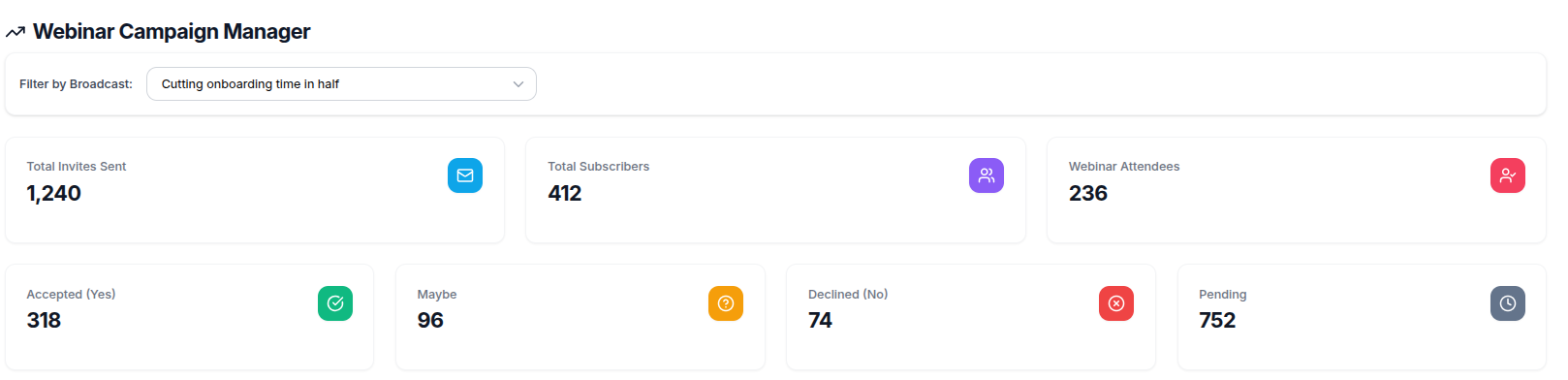
The Reports page is the Webinar Campaign Manager. Filter by a synced webinar to see headline stat cards: Total Invites Sent, Total Subscribers, Webinar Attendees, Attributed Attendees, Accepted (Yes), Maybe, Declined (No), and Pending. Below that, a Sender ID Performance Comparison table breaks results down by sender, and campaign cards link through to each campaign's detail. The filter groups webinars by provider. Connecting them is covered in Sync webinars with Zoom and Sync webinars with WebinarGeek.
Field reference
| Where | What you see |
|---|---|
| Campaigns list | Per campaign counts: Yes, Maybe, No, Waiting, Sent, Not Sent. |
| Detail, Overview tab | RSVP summary for the campaign. |
| Detail, Contacts tab | Per contact response, inviter, and last sync time. |
| Reports page | Broadcast level totals, attendees, and per sender comparison. |
What happens next
RSVP counts update on their own as the background refresh runs, about every 10 minutes. There is nothing to press for the counts to move. Newly sent batches will show as Waiting until each person responds, then shift into Yes, Maybe, or No.
If you need a fresh pull for a specific campaign, the detail page can trigger a refresh, which is handled in the background for larger campaigns. Otherwise the scheduled refresh keeps everything current.
Best practices
- Use the Campaigns list for a fast scan, and the detail Contacts tab when you need names.
- Use the Reports page when you are running webinars and want totals across campaigns for one broadcast.
- Give counts a few minutes after a known response before assuming something is wrong.
Common mistakes
- Expecting an RSVP to appear the instant a prospect answers. The refresh runs on a cycle.
- Reading Waiting as a failure. It only means the person has not responded yet.
- Looking for written replies. Calendar campaigns track RSVP status, not free-text replies.
Troubleshooting
| Symptom | Cause | Fix |
|---|---|---|
| A recent response is not showing | The scheduled refresh has not run for that event yet | Wait a few minutes for the next cycle, or refresh from the detail page. |
| Counts look lower than the list size | Unsubscribed and invalid contacts are excluded from the audience | This is expected. The count reflects valid, sendable contacts. |
| Reports page is empty | No broadcast is selected, or none is synced | Sync a webinar broadcast, then filter by it. |
FAQ
How often do RSVP counts update?
About every 10 minutes, on a background schedule. Very recently refreshed events are skipped to avoid redundant checks.
What does Waiting or Awaiting mean?
The person has been sent the invitation but has not accepted, declined, or marked maybe yet.
Can I export the results?
Yes. Open the campaign and use Export Excel on the detail page to download the contacts and their responses.
Why is the contact count lower than my list?
Unsubscribed and invalid addresses are removed, so the tracked count is the valid, sendable audience.
Does Tantra track whether people opened the invitation?
No. The tracked signal is the RSVP: accepted, declined, maybe, or no answer.
Related articles
Was this article helpful?
Related articles
- Calendar campaign statuses explainedUnderstand every calendar campaign status in Tantra, from draft to completed, and why a campaign stays active for days.
- Sync webinars with WebinarGeekConnect your WebinarGeek API key, sync broadcasts and subscribers, and feed RSVP data into your calendar campaigns and reports.
- Sync webinars with ZoomConnect a Zoom Server-to-Server OAuth app, sync webinars and registrants, register contacts who RSVP, and see which invites turned into attendance.