
Manage your account and sign-in
Open your account profile, update your details and security settings, and sign in or out of Tantra.
beginner2 min readUpdated Sun Jul 26 2026 00:00:00 GMT+0000 (Coordinated Universal Time)
Open in Tantra
These open the app in a new tab. You may be asked to sign in.
Overview
Your Tantra account is separate from your connected sender mailboxes. This article covers signing in and out, and where to change your own account details and security settings.
Step-by-step: open your account settings
- Click your avatar in the top-right corner of the header. A menu opens showing your name and email address.
- Click Manage account. This opens your profile page at
/profile. - Update your details there. Changes save on the profile page itself.
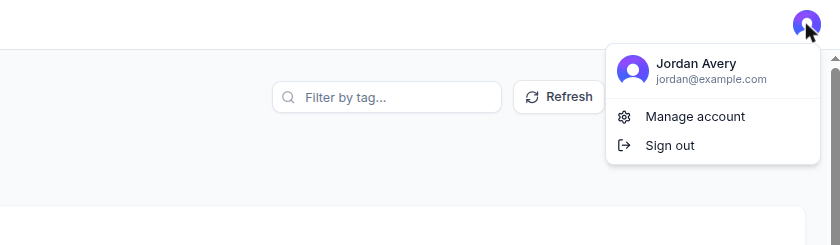
Screens and controls
- The avatar menu has two actions: Manage account and Sign out.
- The profile page hosts the account management interface. Your profile details and account security settings, such as how you sign in, are managed here rather than elsewhere in Tantra.
Signing in and out
- Sign in at
/sign-inand create an account at/sign-up. Both pages show the form on the left, with a Back to home link above it. - To sign out, open the avatar menu and click Sign out.
Common mistakes
- Looking for a settings page in the sidebar. Account management lives behind the avatar menu, under Manage account.
- Confusing your Tantra sign-in with your sender mailboxes. Changing your account details does not affect connected senders. Senders are managed on the Accounts page.
FAQ
Where do I change my password or sign-in method?
On the profile page. Open the avatar menu and click Manage account. Security settings are managed there.
Does changing my account email affect my campaigns?
Your campaigns send from your connected sender mailboxes, not from your account email. Sender setup is covered in Quick start, from sign up to first send.
I am signed out unexpectedly. What do I do?
Sign back in at /sign-in. Protected pages redirect you there when your session ends.
Related articles
Was this article helpful?
Related articles
- Quick start, from sign up to first sendSet up Tantra end to end. Sign up, connect Google Workspace, verify senders, load contacts, and launch your first campaign.
- What is TantraTantra is an outbound platform with two engines, calendar invitations and cold email, both sending from your own Google Workspace mailboxes.