
Receive outbound webhooks
Register an endpoint URL to receive Tantra webhooks, from calendar RSVP counts to cold email events, and learn how delivery and retries work.
Open in Tantra
These open the app in a new tab. You may be asked to sign in.
Overview
A webhook sends data from Tantra to a URL you control, so an external system can react without polling. Tantra webhooks report RSVP activity for your calendar campaigns. When RSVP counts change, Tantra posts a JSON payload to your endpoint with campaign, event, RSVP, and optional attendee details. This article covers registering an endpoint, choosing what the payload contains, and how delivery and retries work.
This page's configuration controls the calendar RSVP payload. The same registered endpoint also receives cold email events, such as replies, clicks, and bounces. Those are documented in Webhook event triggers.
How it works
You register a webhook by giving it a title and an endpoint URL, then choosing which fields the RSVP payload includes. Tantra refreshes RSVP data for your calendar campaigns on a recurring schedule. Each time it refreshes, Tantra sends a payload to every active webhook you have registered, using an HTTP POST with a JSON body.
You choose which pieces of RSVP data are included: RSVP counts, event fields, and whether to include the list of attendees. Fields you turn off are left out of the RSVP payload. These checkboxes shape the RSVP payload only. Cold email events always carry their own fixed fields.
Each delivery carries an X-Tantra-Event header naming the event, so your endpoint can tell an RSVP update apart from a cold email event. See Webhook event triggers for the full list.
Before you start
- An endpoint that accepts an HTTP POST with a JSON body and replies with a
2xxstatus. - The endpoint should be reachable from the internet over HTTPS.
Step-by-step: register a webhook
- Open the Webhooks page from the app navigation.
- Click Create Webhook.
- Enter a Webhook Title, for example
RSVP Notifications. - Enter the Webhook URL, the endpoint that will receive payloads. It must be a valid URL.
- Under Data Format Configuration, choose which fields to include (see the next section).
- Click Create Webhook.
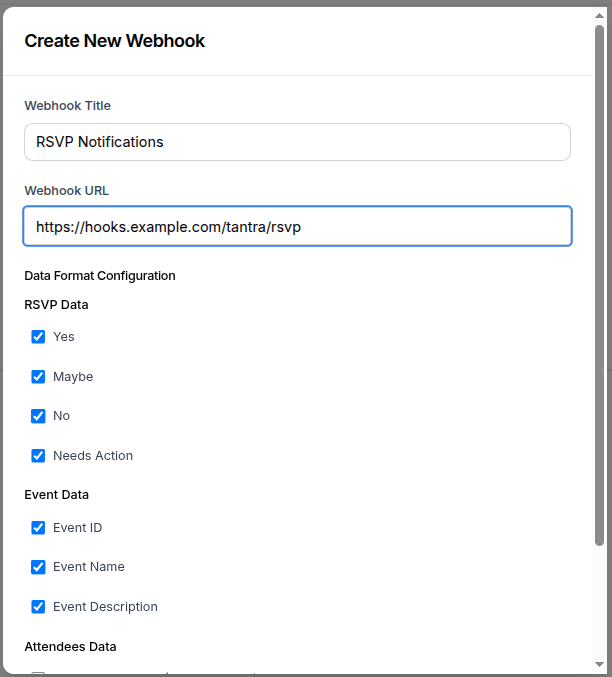
Screens and controls
The Data Format Configuration section has three groups:
- RSVP Data: checkboxes for Yes, Maybe, No, and Needs Action. Each maps to a count in the payload.
- Event Data: checkboxes for Event ID, Event Name, and Event Description.
- Attendees Data: a single Include Attendees (Email + Status) checkbox. When on, the payload lists each attendee's email and RSVP status.
On the Webhooks table, each row shows the Title, URL, a Status toggle to activate or deactivate the webhook, a Triggers count with the last trigger time, and a Data Format summary. Row actions let you send a test payload, edit the webhook, or delete it.
Use the info icon next to Data Format to preview the exact JSON your configuration produces.
Field reference
| Control | Payload effect |
|---|---|
| RSVP: Yes | Adds the count of attendees who accepted |
| RSVP: Maybe | Adds the count of attendees who answered tentatively |
| RSVP: No | Adds the count of attendees who declined |
| RSVP: Needs Action | Adds the count of attendees who have not yet responded |
| Event: Event ID | Adds the calendar event id |
| Event: Event Name | Adds the event title |
| Event: Event Description | Adds the event description |
| Include Attendees | Adds a list of attendees, each with email and status |
What the payload looks like
Tantra posts a JSON body. The campaign name, sender email, and a timestamp are always included. The rest depends on your configuration. With every field turned on, the payload looks like this:
{
  "campaign": {
    "id": "campaign_abc123xyz",
    "name": "Example Campaign Name",
    "events": [
      {
        "id": "google_event_abc123xyz",
        "name": "Product Launch Webinar",
        "description": "Join us for an exciting product launch event...",
        "rsvp": { "yes": 15, "maybe": 5, "no": 3, "needsAction": 12 },
        "attendees": [
          { "email": "alice@example.com", "status": "accepted", "name": "Alice" },
          { "email": "bob@example.com", "status": "tentative", "name": "Bob" }
        ]
      }
    ]
  },
  "sender_email": "sender@example.com",
  "timestamp": "2026-07-25T12:00:00.000Z"
}
Requests carry a User-Agent header of Tantra-Webhook/1.0. A test payload also carries an X-Webhook-Test header set to true, so you can tell tests apart from real deliveries.
What happens next
After you register an active webhook, Tantra sends a payload each time it refreshes RSVP counts for your calendar campaigns. That refresh runs automatically about every 10 minutes. You do not trigger it by hand. Watch the Triggers count and last trigger time on the Webhooks row to confirm deliveries are landing.
To check your endpoint before real traffic arrives, click the send icon on the webhook row to post a sample payload right away.
Delivery and retries
- Tantra sends to every active webhook at the same time. One slow or failing endpoint does not hold up the others.
- A response with a
2xxstatus counts as delivered. - If a delivery fails, Tantra tries again, up to three attempts in total, waiting about one second, then about two seconds, between tries.
- Each attempt has a 15 second timeout.
- If all attempts fail, that delivery is dropped. The next scheduled refresh sends fresh counts.
Best practices
- Reply with a
2xxstatus quickly, then do slower processing after you respond, so you stay inside the 15 second timeout. - Only include the fields you actually use. Smaller payloads are easier to handle.
- Use the test button to validate a new endpoint before relying on live deliveries.
- Turn a webhook off with the Status toggle when you need to pause it, instead of deleting it.
Common mistakes
- Registering an endpoint that is not reachable over the public internet. Tantra cannot deliver to a local or firewalled URL.
- Doing heavy work before replying, which can exceed the 15 second timeout and cause retries.
- Assuming every delivery is an RSVP update. The same endpoint also receives cold email events, each named by the
X-Tantra-Eventheader. Branch on that header. See Webhook event triggers.
Troubleshooting
| Symptom | Cause | Fix |
|---|---|---|
Test shows Failed to send test payload: ... | Your endpoint did not reply with a success status, or was unreachable | Confirm the URL is correct, public, and returns a 2xx status |
Test shows Test payload sent successfully! Response status: ... but no real deliveries | The webhook may be inactive, or no RSVP change has happened yet | Check the Status toggle is on and wait for the next RSVP refresh |
| Payload is missing fields you expected | Those fields are turned off in the configuration | Edit the webhook and enable the fields under Data Format Configuration |
| Deliveries stop after working | The webhook was deactivated or deleted, or your endpoint began failing | Re-check the Status toggle and your endpoint's responses |
FAQ
What triggers a webhook?
A refresh of RSVP counts for your calendar campaigns. Tantra runs that refresh automatically about every 10 minutes and posts to your active webhooks.
Do these webhooks cover cold email?
Yes. This page configures the calendar RSVP payload, but the same registered endpoint also receives cold email events like replies, clicks, and bounces. There is no separate setup for them. See Webhook event triggers.
Can I connect Tantra to a CRM or Zapier, n8n, or Make?
Yes. Point your webhook at an automation tool's incoming webhook URL, branch on the event, and map fields into your CRM. See the CRM section of Webhook event triggers.
How do I test my endpoint?
Click the send icon on the webhook row. Tantra posts a sample payload right away, with an X-Webhook-Test header set to true.
How many times does Tantra retry a failed delivery?
Up to three attempts in total, with short waits between them, and a 15 second timeout on each attempt. If all fail, the next refresh sends fresh data.
Can I pause a webhook without deleting it?
Yes. Use the Status toggle on the webhook row to deactivate it, then toggle it back on later.
Can I change which fields are sent?
Yes. Edit the webhook and adjust the checkboxes under Data Format Configuration.
Related articles
Was this article helpful?
Related articles
- Webhook event triggersEvery event your registered webhook receives, from cold email sends and replies to clicks, bounces, unsubscribes, and lead stage changes.
- Create and manage API keysCreate a Tantra API key, copy it once at creation, use it in the X-API-Key header, and revoke keys you no longer need.