
Create and manage templates
Build reusable email and calendar templates in Tantra, insert merge fields, and use built-in AI to generate or improve copy.
Open in Tantra
These open the app in a new tab. You may be asked to sign in.
Overview
Templates are reusable pieces of outreach copy you save once and pull into campaigns later. Tantra has two kinds. Calendar templates hold an event title and a description for calendar invitation campaigns. Email templates hold a subject line and an HTML body for cold email sequences. Both can contain merge fields so each recipient sees personalized text.
You manage every template from the Templates page. This article covers creating, editing, and deleting them, plus the built-in AI helpers.
How it works
Each template belongs to your account and has one type, Calendar or Email. The Templates page shows a tab for each type. When you build a campaign or a sequence step, you pick a template of the matching type.
Templates save instantly. There is no publish step or background job. Once you click Create Template, the template is stored and appears in your library right away.
Template names must be unique within your account. Tantra checks this when you save. Deleting a template is a soft delete, so a name freed by a deletion can be reused later.
Before you start
- Decide which engine the template is for. Calendar templates feed invitation campaigns. Email templates feed cold email sequences.
- Have your merge fields in mind. See Merge tags and spintax.
- You do not need to connect an LLM provider to use the template editor's AI generate and enhance buttons. Those use Tantra's built-in AI.
Step-by-step: create an email template
- Open Templates from the main navigation.
- Select the Email tab.
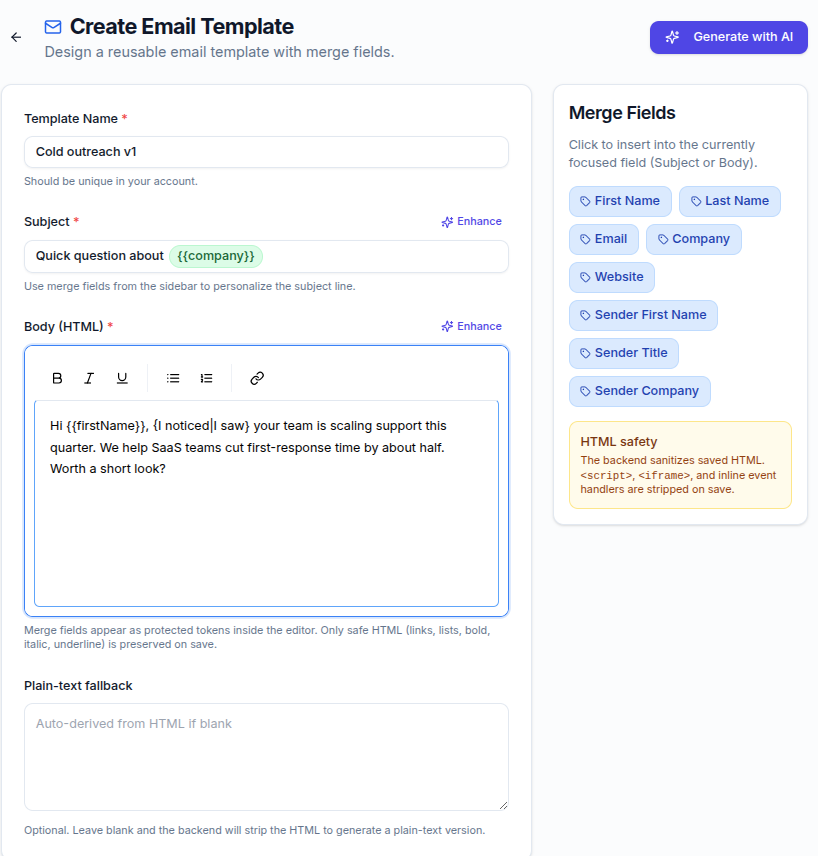
- Click Create Email Template. You can also use the dropdown next to it and choose Email Template.
- Enter a Template Name. It must be unique in your account.
- Write the Subject. Insert merge fields from the Merge Fields sidebar.
- Write the Body (HTML) in the rich text editor. Use the toolbar for formatting.
- Optionally add a Plain-text fallback. Leave it blank and Tantra derives one from your HTML.
- Click Create Template.
Step-by-step: create a calendar template
- Open Templates and select the Calendar tab.
- Click Create Calendar Template, or use the dropdown and choose Calendar Template.
- Enter a unique template name, a title, and a description.
- Save the template.
Generate or improve copy with AI
The email template editor has two AI helpers.
- Generate with AI opens a dialog. Describe the email you want, including audience, goal, and tone, then click Generate. Tantra fills in the name, subject, and body. If you leave the box empty you see Please provide context for the AI.
- Enhance appears next to the Subject and Body fields. Add optional instructions, then rewrite that single field. You need existing content in the field before enhancing it.
These helpers use Tantra's built-in AI and work even if you have not connected your own LLM provider. They are for drafting the template copy. They are different from campaign AI personalization, which rewrites copy per recipient at send time. See AI personalization for email and calendar.
Screens and controls
- Templates page: Calendar and Email tabs, a search box, a create button with a dropdown, and per-card View, Edit, and Delete actions.
- Create email page: Template Name, Subject, Body (HTML), Plain-text fallback, a Merge Fields sidebar, Generate with AI, and per-field Enhance.
- View page: opens a saved template to read or edit. Email templates show subject and body. Calendar templates show title and description.
Field reference
| Field | Required | Notes |
|---|---|---|
| Template Name | Yes | Must be unique in your account |
| Subject (email) | Yes | Supports merge fields |
| Body (HTML) (email) | Yes | Rich text. Unsafe HTML is stripped on save |
| Plain-text fallback (email) | No | Auto-derived from the HTML if left blank |
| Title (calendar) | Yes | Supports merge fields |
| Description (calendar) | Yes | Supports merge fields |
What happens next
The template saves immediately and appears under its tab in the Templates library. There is no waiting. AI generate and enhance take a few seconds because they call a model, then the result appears in the editor for you to review and edit before saving.
You then reference the template when you build a campaign or a sequence step. Editing a saved template does not change campaigns that already sent copy from it.
Best practices
- Keep merge fields to values you actually store for contacts, so nothing renders blank.
- Write a real plain-text fallback for important emails rather than relying on the auto-derived one.
- Review AI generated copy before saving. Treat it as a first draft.
- Use clear, unique template names so you can find the right one when building a campaign.
Common mistakes
- Clicking a merge field before focusing a field. You see Please click on Subject or Body field first. Click into the Subject or Body first, then insert.
- Reusing a name that is already taken. Saving fails with a duplicate-name message.
- Expecting the editor's Generate with AI to personalize per recipient. It drafts one template. Per-recipient personalization is a campaign setting.
Troubleshooting
| Symptom | Cause | Fix |
|---|---|---|
| Save fails with "A template with this name already exists. Please choose a different name." | Another template already uses that name | Rename the template and save again |
| "Template name is required", "Subject is required", or "Body is required" toast | A required field is empty | Fill the named field before saving |
| "Please click on Subject or Body field first" when inserting a merge field | No field was focused | Click into the Subject or Body, then click the merge field |
| "Please provide context for the AI." | The generate dialog was empty | Describe the email you want, then click Generate |
| Merge field looks blank in a sent email | The contact has no value for that field | Unknown fields render as empty text. Fill the contact data or remove the field |
FAQ
What is the difference between a calendar template and an email template?
Calendar templates hold an event title and description for invitation campaigns. Email templates hold a subject and HTML body for cold email sequences.
Do I need my own AI key to use Generate with AI?
No. The template editor's generate and enhance buttons use Tantra's built-in AI. Connecting your own provider is only needed for campaign AI personalization.
Can I use merge fields in templates?
Yes. Insert them from the Merge Fields sidebar. See Merge tags and spintax.
Is my HTML kept exactly as written?
No. Tantra keeps safe formatting like links, lists, bold, and italic. Scripts, iframes, and inline event handlers are removed on save.
What happens when I delete a template?
It is removed from your library. This is a soft delete, so the name becomes free to use again.
Does editing a template change campaigns that already ran?
No. Copy that already sent is not changed by later edits to the template.
Related articles
Was this article helpful?
Related articles
- Merge tags and spintaxPersonalize outreach in Tantra with merge tags like firstName and company, and add spintax variants that stay stable per recipient.
- AI personalization for email and calendarTantra rewrites your email and calendar copy per recipient using their website. Turn it on per step or campaign, with template fallback.