
Import contacts from CSV
Upload a CSV, map its columns to Tantra fields, name a new list, and import up to 50,000 contacts in one file.
Open in Tantra
These open the app in a new tab. You may be asked to sign in.
Overview
Importing lets you add many contacts at once from a spreadsheet exported as a CSV file. The import is a two-step flow. First you upload the file. Then you map its columns to Tantra fields and give the new list a name.
How it works
Tantra reads your CSV in the browser, then sends the contacts to the server in batches. Every imported contact is added to one new list that you name during the import. Large files are split into batches of up to 1,000 contacts behind the scenes, all going to the same list.
Before you start
- Export your contacts as a CSV file. Only CSV is accepted here. Spreadsheet formats such as XLSX are not accepted by this uploader.
- Keep the file at or under 10 MB and at or under 50,000 contacts.
- Make sure the file has a header row and at least an email column.
Step-by-step
Step 1: Upload the file
- In the left sidebar, click Contacts, then click Import Contacts.
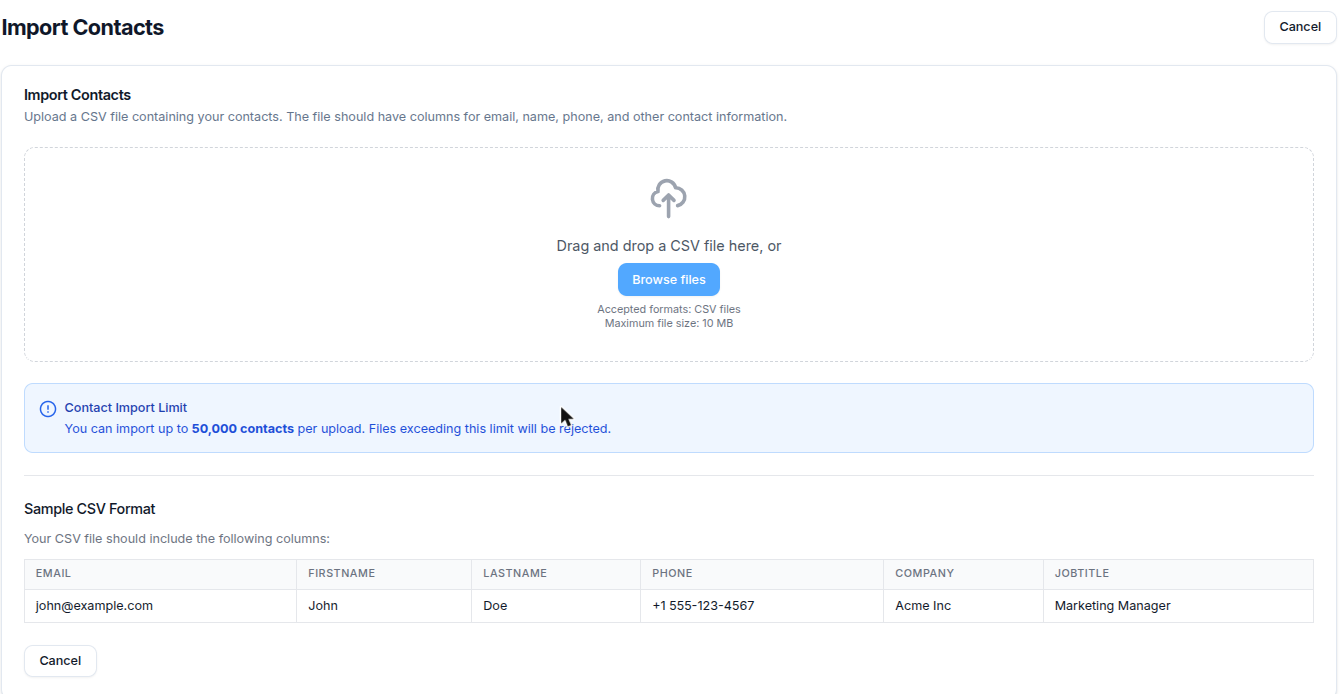
- Drag a CSV onto the upload area, or click Browse files and pick one.
- The area states
Accepted formats: CSV filesandMaximum file size: 10 MB, and shows a sample layout with the columnsemail,firstName,lastName,phone,company, andjobTitle.
Step 2: Map fields and name the list
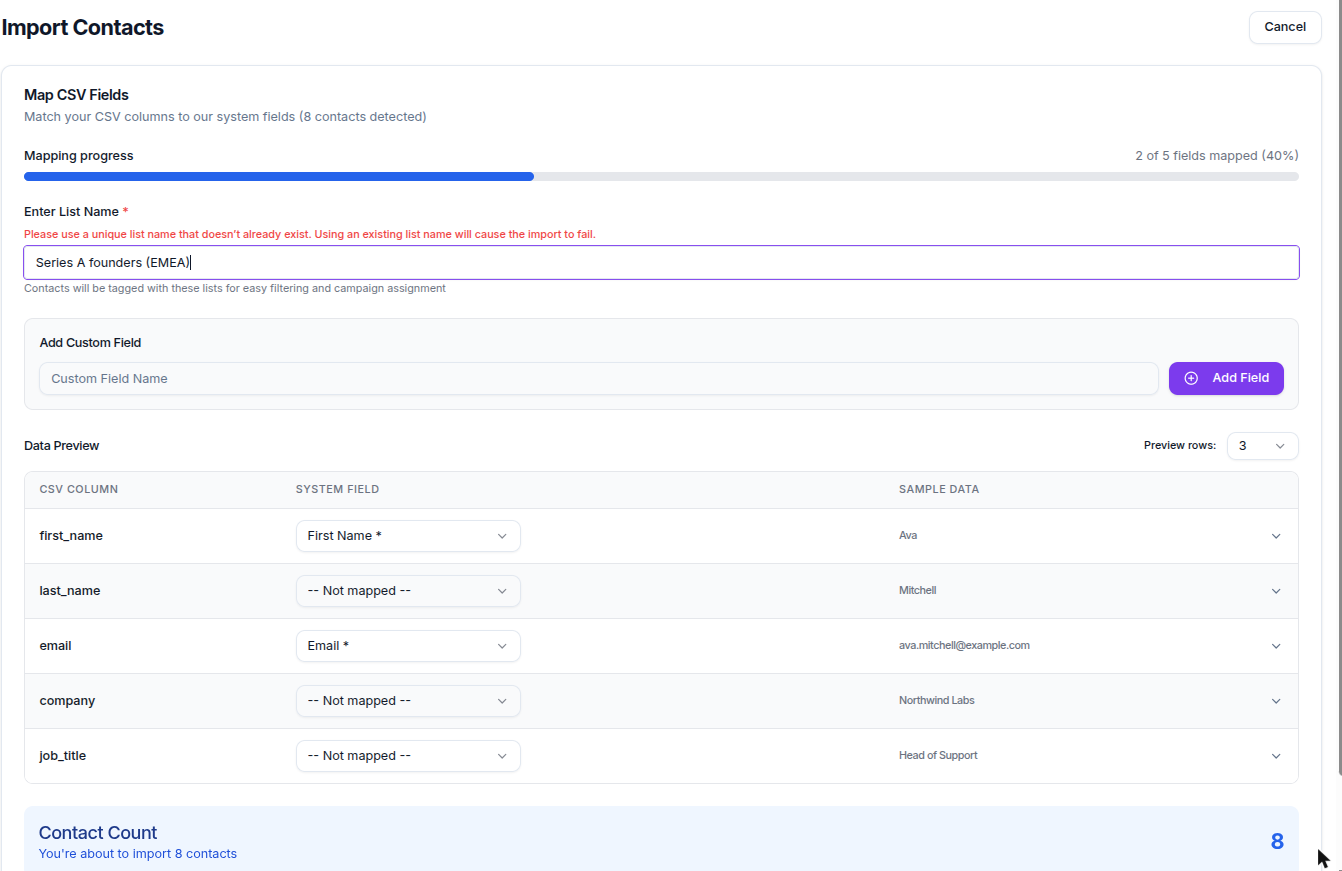
- On the Map CSV Fields screen, set the System Field for each column. Tantra guesses the Email and First Name columns for you.
- The fields you can map to are Email, First Name, Last Name, Phone Number, Company, Website, and LinkedIn Profile URL. Email and First Name are required. Leave any column unmapped to ignore it.
- To capture an extra column, type a name under Add Custom Field and click Add Field.
- In Enter List Name, type a name that does not already exist. Reusing a name causes the import to fail.
- Review the Data Preview, then click Import Contacts.
Field reference
| Control | Required | Notes |
|---|---|---|
| System Field per column | Email and First Name required | Choose which Tantra field a CSV column fills, or leave it unmapped |
| Add Custom Field | No | Adds an extra field. Duplicate name shows A field with this name already exists |
| Enter List Name | Yes | Must be unique. Empty shows Please enter a list name. |
What happens next
When you click Import Contacts, Tantra checks that the list name is free, then uploads the contacts in batches. You see a progress toast, then a result such as Successfully imported 480 contacts to list "Q3 Prospects". If some rows fail, the count of failures is shown too. Tantra then sends you back to the Contacts page, where the new list is ready to use.
A row is rejected if it has neither an email nor a first name, with the reason Contact must have at least an email address or first name. Successful and failed counts are reported at the end.
Best practices
- Keep imports to a few thousand contacts at a time. The interface recommends batches of about 5,000 for smooth processing.
- Clean your email column before importing so fewer rows fail validation later. See Contact validation and quarantine.
- Use a fresh, descriptive list name for each import so you can target it precisely.
Common mistakes
- Uploading an XLSX file. Re-save it as CSV first.
- Reusing an existing list name. Pick a new name, since an existing one makes the import fail.
- Forgetting to map the First Name or Email column. Both are required before you can proceed.
Troubleshooting
| Symptom | Cause | Fix |
|---|---|---|
Your file contains <count> contacts, which exceeds the maximum limit of 50,000 contacts per import. | The file has more than 50,000 rows | Split it into smaller files, each at or under 50,000 |
First Name field is required. Please map a column to First Name. | No column mapped to First Name | Set a column's system field to First Name |
Email field is required. Please map a column to Email. | No column mapped to Email | Set a column's system field to Email |
Invalid email format in <n> rows. | One or more email cells are malformed | Fix the listed rows in your CSV and re-upload |
A list named "<name>" already exists. Please choose a different name. | The list name is taken | Enter a name that does not exist yet |
| The file will not upload | It is not a CSV, or is over 10 MB | Save as CSV and keep it under 10 MB |
FAQ
Can I import an Excel file?
Not directly. This uploader accepts CSV only. Save or export your spreadsheet as CSV first.
How many contacts can one file hold?
Up to 50,000 per import. Files above that are rejected. The interface recommends around 5,000 per batch for the smoothest run.
Do imported contacts go into an existing list?
No. Each import creates one new list with the name you enter. Reusing an existing name causes the import to fail.
What happens to rows with a bad or missing email?
A row with no email and no first name is rejected and counted as a failure. Rows with a malformed email are flagged during mapping so you can fix them.
Are duplicate emails removed on import?
Tantra requires unique emails per contact. Clean obvious duplicates in your file before importing to avoid unexpected failures.
Related articles
Was this article helpful?
Related articles
- Manage contacts and listsAdd, filter, and delete contacts, organize them into lists, and use lists to target your calendar and cold email campaigns.
- Contact validation and quarantineSee how Tantra checks email syntax, role addresses, and MX records before a cold email campaign sends, and why some contacts are quarantined.