
Manage leads, stages, and scores
Track prospects in Tantra's leads view, set stages, read the automatic engagement score, and open a lead's activity, notes, and campaigns.
Open in Tantra
These open the app in a new tab. You may be asked to sign in.
Overview
The leads view is your pipeline of prospects. Each lead has a stage you can set, a score that updates automatically as the prospect engages, and a profile with their activity, notes, and campaigns. This is where you turn replies into next steps after you spot them in the inbox.
How it works
Every contact you email becomes a lead. As Tantra records activity, such as a send, a click, or a reply, it updates that lead's score and can move its stage. You can also set a lead's stage yourself at any time. For how activity is detected, see Reply detection and intent classification.
The score
The score is a running number that reflects engagement. Tantra adjusts it automatically each time it records an activity:
| Activity | Score change |
|---|---|
| Email sent | +1 |
| Link clicked | +3 |
| Positive reply | +15 |
| Neutral reply | +10 |
| Negative reply | +5 |
| Bounce | -5 |
| Unsubscribe | -10 |
A reply of any tone adds to the score, because any reply is engagement. A bounce or an unsubscribe subtracts from it. Note that even a negative reply adds points, since the prospect engaged, so read the score together with the stage and the reply intent rather than on its own.
The stage
The stage is a label for where a lead sits in your pipeline. You set it from a picker with these options:
- New
- Engaged
- Qualified
- Opportunity
- Customer
- Unresponsive
- Disqualified
Tantra also updates a lead's stage automatically as it records activity like sends, clicks, and replies, so a lead can move without you touching it. You can always override the stage by hand.
Before you start
- You need contacts. Import them first if your list is empty. See Import contacts from CSV.
- Scores and stages only start moving once your campaigns send and prospects engage.
Step-by-step
- Open Leads from the main navigation.
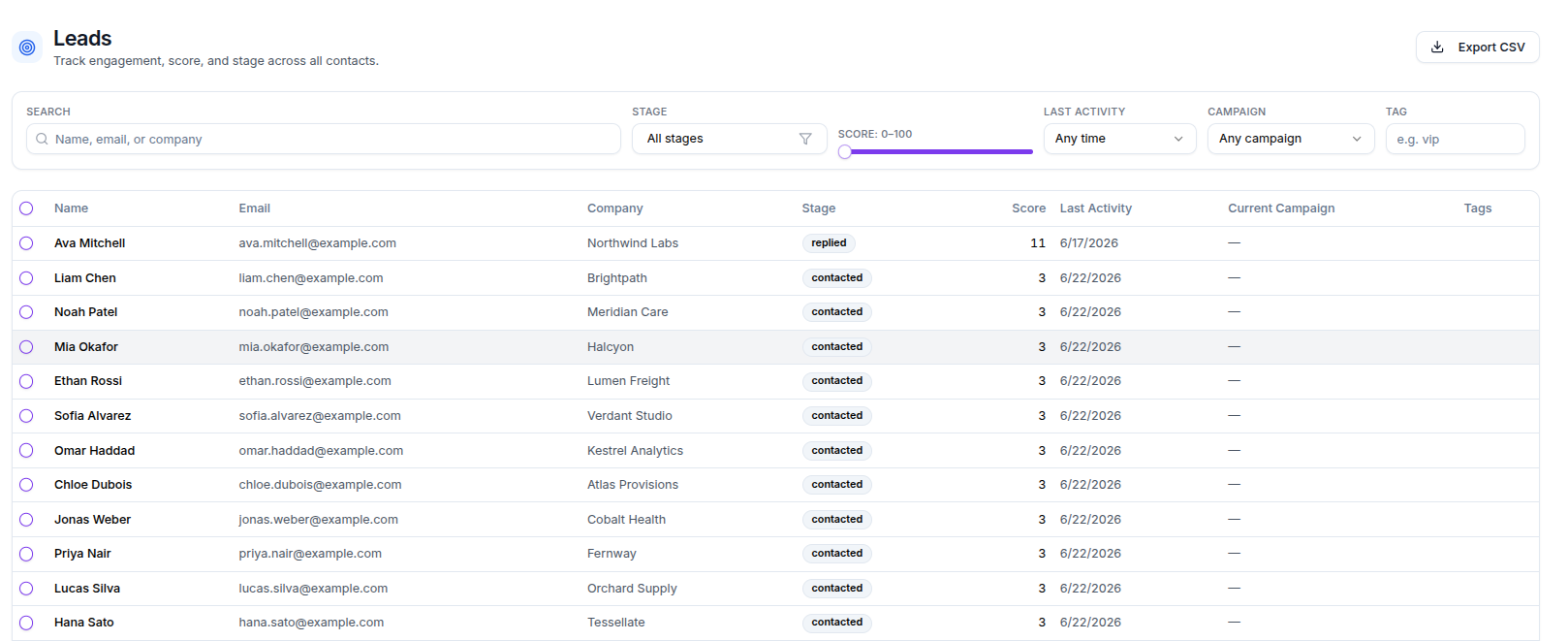
- Use the filters to focus the list: search by Name, email, or company, filter by stage, drag the score range slider, choose a last-activity window, or filter by campaign or tag.
- Click any row to open the lead profile on the right.
- In the profile, set the Stage, read the Score, and switch between the Activity, Notes, and Campaigns tabs.
- From the profile footer, use Open conversation, Add to suppression, or Unenroll from all as needed.
- To update many leads at once, select their checkboxes and use Set stage to... in the selection bar.
Screens and controls
- Export CSV. Downloads the currently filtered leads as a CSV file named
leads-YYYY-MM-DD.csv. - Filters. Search (Name, email, or company), a stage multi-select, a Score range slider from 0 to 100, a last-activity window (Any time, 24h, 7d, 30d, 90d), a campaign filter, and a tag filter. A summary shows how many filters are active and how many leads are showing, with a Clear all control.
- Table. Columns are select, Name, Email, Company, Stage, Score, Last Activity, Current Campaign, and Tags. When empty it shows No leads yet. Import contacts to get started. or No leads match your filters.
- Selection bar. When you select rows, a bar shows the count with a Set stage to... picker and Clear selection.
- Pagination. Choose 10, 20, 50, or 100 rows per page, with page controls.
- Lead profile. A drawer with the lead's name and email, a Stage picker, the Score, and three tabs: Activity, Notes, and Campaigns. The footer has Open conversation, Add to suppression, and Unenroll from all.
Field reference
| Control | What it does |
|---|---|
| Stage picker | Sets the lead's pipeline stage |
| Score | Read-only engagement number that updates automatically |
| Set stage to... | Sets the same stage on every selected lead |
| Export CSV | Downloads the filtered leads as a CSV |
| Open conversation | Opens the lead's latest email thread in the inbox |
| Add to suppression | Suppresses the lead so campaigns stop emailing them |
| Unenroll from all | Removes the lead from every campaign and cancels pending steps |
What happens next
- A stage you set by hand saves right away. A bulk stage change applies to each selected lead in turn, and Tantra reports if any did not update.
- Add to suppression stops future campaign emails to that lead. See Suppression lists and unsubscribes.
- Unenroll from all removes the lead from active campaigns and cancels pending steps. This cannot be undone, but you can re-enroll the lead later.
- Scores keep updating automatically as Tantra records new activity, so a lead's number can change between visits.
Best practices
- Filter by stage and score together to find your warmest leads, then work them from the profile.
- Use tags to group leads for a filter, for example a target account list.
- Read the score alongside the reply intent, since a negative reply still raises the score.
Common mistakes
- Treating a high score as interest. A negative reply raises the score too. Check the stage and the reply intent.
- Using Unenroll from all when you only meant to suppress. Unenrolling cancels pending steps and cannot be undone.
- Expecting a full activity timeline everywhere. On some setups the profile shows partial activity rebuilt from email threads.
Troubleshooting
| Symptom | Cause | Fix |
|---|---|---|
| The Activity tab shows "Activity timeline coming soon (Phase 2)." | The full activity feed is not enabled on this backend | Use the Campaigns tab and the inbox to trace the lead's history |
| The Notes tab shows "Notes log isn't enabled on this backend." | The notes feature is not enabled | Track notes elsewhere for now |
| A score looks high for a cool lead | Replies and clicks add points regardless of tone | Read the score with the stage and reply intent, not alone |
| A bulk stage change did not apply to every lead | One or more updates failed | Re-select the affected leads and set the stage again |
| No leads at all | No contacts imported, or campaigns have not sent | Import contacts and launch a campaign |
FAQ
Is the score something I set?
No. The score updates automatically from engagement. You set the stage, not the score.
Why did a negative reply raise a lead's score?
Any reply counts as engagement, so a reply of any tone adds points. Use the stage and the reply intent to judge quality.
Can I change many leads at once?
Yes. Select their checkboxes and use Set stage to... in the selection bar.
What is the difference between suppress and unenroll?
Suppress stops future campaign emails to the lead. Unenroll removes the lead from campaigns now and cancels pending steps. Unenroll cannot be undone.
Where does a lead's reply history come from?
From the email threads Tantra detected. Open the lead's conversation from the profile to read it. See Use the threaded inbox.
Can I export my leads?
Yes. Export CSV downloads the currently filtered leads to a file named leads-YYYY-MM-DD.csv.
Related articles
Was this article helpful?
Related articles
- Reply intents explainedUnderstand the reply intents Tantra assigns, from interested to unsubscribe request, and how they map to the tone badges in your inbox.
- Use the threaded inboxRead replies to your cold email campaigns in Tantra's threaded inbox, filter by campaign or mailbox, and see each message's classification.