
Sync webinars with WebinarGeek
Connect your WebinarGeek API key, sync broadcasts and subscribers, and feed RSVP data into your calendar campaigns and reports.
Open in Tantra
These open the app in a new tab. You may be asked to sign in.
Overview
WebinarGeek is a webinar platform. Connecting it lets Tantra import your broadcasts and their subscribers, then pull attendance and RSVP data for reporting. You connect it with a WebinarGeek API key on the WebinarGeek Connector page, sync your broadcasts, and optionally sync subscribers per broadcast or all at once.
A broadcast is a scheduled or completed webinar in WebinarGeek. Once synced, broadcasts can back your calendar campaigns and their RSVP stats appear in reports. See Track RSVPs and campaign results.
How it works
You paste your WebinarGeek API key and save it. Tantra validates the key against your WebinarGeek account before storing it. After the key is connected, the Broadcasts tab can fetch your broadcasts, request RSVP statistics for them, and sync each broadcast's subscribers. The Subscribers tab lists synced subscribers.
Before you start
- A WebinarGeek account with API access.
- Your WebinarGeek API key, found in the Advanced section of your WebinarGeek account settings, under the API integration area.
Step-by-step
- In the sidebar, open Connectors, then choose WebinarGeek.
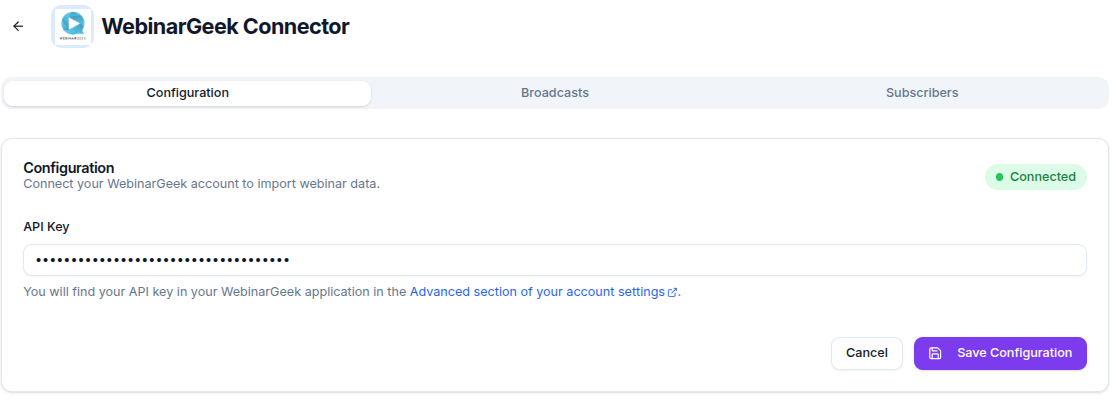
- On the Configuration tab, paste your key into API Key. The field is masked.
- Click Save Configuration. Tantra validates the key and shows a Connected badge when it succeeds.
- Open the Broadcasts tab and click Sync Broadcasts to fetch your webinars.
- To pull attendance data, use the per row subscriber sync or Sync All Subscriber Data.
Screens and controls
- Three tabs: Configuration, Broadcasts, and Subscribers.
- Configuration: an API Key field, a Save Configuration button, and a Connected badge once saved.
- Broadcasts: a filter box labeled Filter broadcasts, a Sync Broadcasts button, a Sync All Subscriber Data button, an Export CSV button, per row subscriber sync, RSVP statistics per broadcast, and Previous and Next paging.
- Subscribers: a list of synced subscribers.
Until you save a valid key, the Broadcasts tab shows Please configure and save your API Key first to view broadcasts.
Field reference
| Control | What it does |
|---|---|
| API Key | Your WebinarGeek key. Required and validated before saving. |
| Sync Broadcasts | Fetches your broadcasts from WebinarGeek and stores them. |
| Sync All Subscriber Data | Syncs subscribers for every synced broadcast in one action. |
| Export CSV | Downloads the broadcast list, including RSVP counts, as a CSV file. |
| Filter broadcasts | Filters the broadcast table by ID. |
What happens next
- Saving a valid key shows a success message that the key was validated and saved, and the Connected badge appears.
- After Sync Broadcasts, Tantra confirms how many broadcasts it synced and fills the table. If none are found, it shows
No broadcasts found. Click "Sync Broadcasts" to fetch data. - Syncing subscribers stores each broadcast's attendees, and Tantra reports the number synced.
- RSVP statistics load per broadcast and roll into your reports. See Track RSVPs and campaign results.
Syncs run when you trigger them from this page. They are not scheduled in the background, so re-sync when you want fresh data.
Best practices
- Sync broadcasts first, then sync subscribers, since subscriber sync works per broadcast.
- Re-sync before you review reports so RSVP counts reflect recent activity.
- Export the CSV when you need a snapshot outside the app.
Common mistakes
- Trying to view broadcasts before the key is saved. The tab stays gated until then.
- Expecting subscriber data to appear automatically. You trigger subscriber sync yourself.
- Assuming syncs refresh on their own. They run only when you click the sync actions.
Troubleshooting
| Symptom | Cause | Fix |
|---|---|---|
| Save shows an Invalid API Key message | WebinarGeek rejected the key | Copy the key again from your WebinarGeek account settings, then save |
Save shows Please enter your API Key. | The field was empty | Paste your key before saving |
| Broadcasts tab shows the gated message | No valid key is saved yet | Save a valid key on the Configuration tab first |
No broadcasts found. Click "Sync Broadcasts" to fetch data. | Broadcasts have not been synced | Click Sync Broadcasts |
Backend error Invalid API key. Please check your WebinarGeek API key and try again. | The key failed validation against WebinarGeek | Confirm the key is active and has API access |
FAQ
Where do I find my WebinarGeek API key?
In your WebinarGeek account settings, in the Advanced section under the API integration area. The connector page links you there.
Does Tantra check my key before saving it?
Yes. Tantra validates the key against your WebinarGeek account. An invalid key is rejected and not stored.
How often does data sync?
Only when you trigger it. Use Sync Broadcasts and the subscriber sync actions whenever you want current data.
Can I export the data?
Yes. The Broadcasts tab has an Export CSV button that downloads the broadcast list with RSVP counts.
How do broadcasts relate to campaigns?
Synced broadcasts can back a smart calendar campaign, and their RSVP stats appear in reporting. See Create a smart calendar campaign.
Related articles
Was this article helpful?
Related articles
- Sync webinars with ZoomConnect a Zoom Server-to-Server OAuth app, sync webinars and registrants, register contacts who RSVP, and see which invites turned into attendance.
- Track RSVPs and campaign resultsSee who accepted, declined, or has not answered your calendar invitations. Learn where RSVP counts appear and how often they refresh.
- Create a smart calendar campaignCreate a Google Calendar invitation campaign in Tantra with the five step wizard. Set the audience, senders, event details, and launch.