
AI personalization for email and calendar
Tantra rewrites your email and calendar copy per recipient using their website. Turn it on per step or campaign, with template fallback.
Open in Tantra
These open the app in a new tab. You may be asked to sign in.
Overview
AI personalization rewrites your copy for each recipient using a text snapshot of that recipient's public website. Instead of one template that every prospect receives word for word, each person gets copy that references their own business. This article explains what personalization produces for each engine, how to turn it on, and what happens when it cannot run.
Personalization is opt-in. It is off unless you enable it, and it always has a template to fall back to.
How it works
When personalization is enabled, Tantra fetches a text snapshot of the recipient's public website, then sends that snapshot and your template to an AI model. The model rewrites your copy so it fits that prospect while keeping your structure and any merge fields. See How website scraping feeds personalization for how the snapshot is gathered.
The two engines produce different output.
Cold email produces a personalized subject line and a personalized HTML body. Tantra runs the two as separate steps, first the subject, then the body, so each is shaped to its own rules. Your merge fields are preserved exactly. The result is one tailored email for that recipient.
Calendar campaigns produce a personalized plain-text invitation description. Tantra runs a single step that rewrites the invite description, keeping your headings, bullet points, links, dates, and time zones, and adding a reference to the prospect's business where one genuinely fits.
Personalization uses the LLM provider you set as your default. See Connect your own LLM provider. If no provider is available, the message falls back to your template.
When personalization falls back to the template
Personalization is designed to never block a send. Tantra uses your plain template instead when any of these is true.
- Personalization is turned off for that step or campaign.
- The recipient uses a personal webmail address, such as Gmail or Yahoo, so there is no business website to read.
- No website can be found or the website snapshot fails.
- No default LLM provider is available.
- The AI call fails after its retry.
In every one of these cases the recipient still receives your template copy, with merge fields and spintax resolved as usual.
Before you start
- Have a template written for the step or campaign. It is both your starting point and your fallback.
- Connect an LLM provider and set it as your default if you want to control the model and prompt. See Connect your own LLM provider.
- Understand that personalization only helps for contacts with a business website or business email domain.
Step-by-step: personalize a cold email step
- Open the cold email campaign builder and go to the sequence step.
- Switch the step mode from Predefined template to AI-personalized.
- Write the template subject and body. The AI keeps this structure and your merge fields.
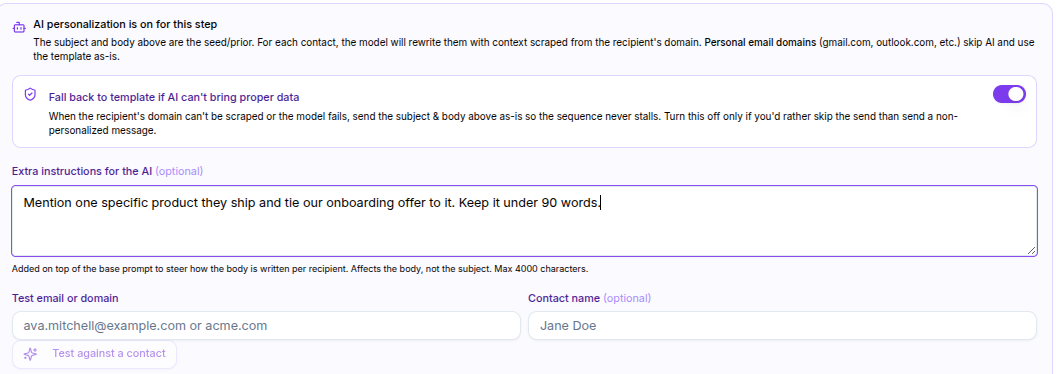
- Optionally open the AI panel to keep or change the template fallback and to add a prompt override for extra guidance.
- Use Test against a contact to preview the personalized subject and body for a real contact before you launch.
Step-by-step: personalize a calendar campaign
- Open the smart calendar campaign builder.
- Enable personalized events and keep AI personalization on for the campaign.
- Provide the invitation template. The AI keeps its structure and rewrites the copy per recipient.
- Launch. Tantra scrapes and personalizes as it processes the campaign.
Screens and controls
- Cold email step: a mode toggle between Predefined template and AI-personalized, an AI panel with a fallback toggle and a prompt override, and Test against a contact.
- Smart calendar builder: options to use personalized events and AI personalization for the campaign.
- LLM Providers page: choose the default provider used for all personalization.
What happens next
Personalization runs when Tantra prepares each message, not while you edit. It is asynchronous.
For cold email, Tantra personalizes a recipient's step shortly before that step is due to send. For calendar campaigns, it personalizes as the campaign processes its batches. Because a model is called per recipient, this takes time and happens in the background.
You do not watch personalized copy render live in the app. To see output before launch, use Test against a contact on an AI email step, or the Test settings preview on your provider page. See Connect your own LLM provider.
Best practices
- Write a strong template first. The AI improves a good template far more than it rescues a weak one.
- Keep merge fields in the template. The AI is instructed to preserve them.
- Use the prompt override on a cold email step to steer tone or add a specific angle.
- Preview with a test contact before launching so you know what recipients will get.
- Leave template fallback enabled so contacts without a usable website still receive your copy.
Common mistakes
- Expecting personalization for contacts on personal webmail. Those fall back to the template by design.
- Assuming personalization runs without a default provider. Without one, messages use the template.
- Removing merge fields and relying on the AI to add names. Keep the fields so values are always filled.
- Not previewing before launch, then being surprised by the tone.
Troubleshooting
| Symptom | Cause | Fix |
|---|---|---|
| Some recipients got the plain template | They had no business website, or the snapshot or AI call failed | This is the intended fallback. Add website data for those contacts if you want them personalized |
| No recipients are personalized | Personalization is off, or no default provider is available | Turn the step or campaign on and set a default provider |
| Preview or send shows generic copy | The website snapshot had no useful company information | The AI avoids inventing facts. Add a better website or accept the template copy |
| A merge field is missing after personalization | Rare, if the field was not in the template | Keep merge fields in the template so they are preserved |
FAQ
What does personalization produce for email versus calendar?
Cold email gets a personalized subject and HTML body. Calendar campaigns get a personalized plain-text invitation description.
Is personalization on by default?
No. You enable it per cold email step or per calendar campaign.
What happens if a contact has no website?
Tantra falls back to your template. Personal webmail contacts always fall back, since there is no business site to read.
Do I need my own AI provider?
To personalize campaigns, set a default LLM provider. The template editor's generate and enhance buttons are separate and do not need one.
Can I see the personalized copy before sending?
Yes. Use Test against a contact on an AI email step, or Test settings on your provider page.
Will the AI invent facts about a prospect?
It is instructed not to. When the website has no useful information, it keeps your template copy instead of guessing.
Related articles
Was this article helpful?
Related articles
- How website scraping feeds personalizationTantra reads a text snapshot of each contact's public website to personalize outreach. See how targets are chosen and when it is skipped.
- Connect your own LLM providerBring your own Cerebras, OpenRouter, or Novita key to Tantra, test the connection, pick a model, and set the default used for AI personalization.
- Personalize your calendar invitations with AIPersonalize each calendar invitation with merge tags and optional AI. Learn how Tantra tailors the invite from each prospect's website.