
Add Google OAuth client credentials
Store your own Google OAuth Client ID and Client Secret so Tantra can connect Google Calendar accounts for you.
Open in Tantra
These open the app in a new tab. You may be asked to sign in.
Overview
An OAuth client credential is a Client ID and Client Secret that identify an app to Google. Tantra uses your own Google OAuth client to connect Google Calendar accounts through a Google sign in screen. You store these two values once on the Google Calendar OAuth App page, and Tantra saves them for later use.
This is a separate mechanism from how Tantra sends. Sending as your mailboxes uses a Google service account with domain-wide delegation, not an OAuth client. See How Tantra sends as your mailboxes.
How it works
You create an OAuth 2.0 Client ID in the Google Cloud Console, then paste the Client ID and Client Secret into Tantra. Tantra saves them as your Google OAuth connector. If you already saved credentials, entering new values replaces them.
Before you start
- A Google Cloud project with the Google Calendar API enabled.
- An OAuth 2.0 Client ID created in that project, with your authorized redirect URIs configured.
Step-by-step
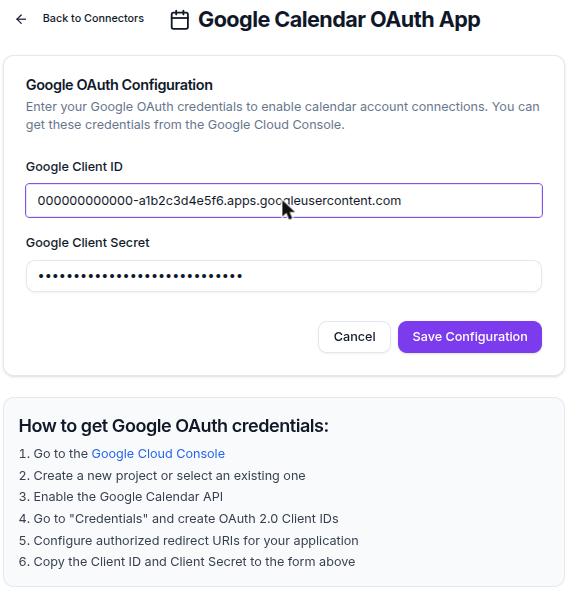
- In the sidebar, open Connectors, then choose the Google Calendar option to reach the Google Calendar OAuth App page.
- In Google Client ID, paste the Client ID from your Google Cloud project.
- In Google Client Secret, paste the matching Client Secret. This field is masked.
- Click Save Configuration. Tantra saves the credentials and returns you to the Manage Google Calendars page.
Where to get the values
The page includes a short guide under How to get Google OAuth credentials. The steps are:
- Go to the Google Cloud Console.
- Create a new project or select an existing one.
- Enable the Google Calendar API.
- Open Credentials and create an OAuth 2.0 Client ID.
- Configure authorized redirect URIs for your application.
- Copy the Client ID and Client Secret into the form.
Field reference
| Field | Required | Notes |
|---|---|---|
| Google Client ID | Yes | Plain text. The Client ID from your OAuth 2.0 client. |
| Google Client Secret | Yes | Masked password field. The Client Secret paired with that Client ID. |
Both fields are required. If either is empty, Tantra shows the error Both Google Client ID and Client Secret are required and does not save.
What happens next
When you save, Tantra stores the credentials against your account and shows a success message that the Google Calendar connector has been configured. You are redirected to Manage Google Calendars, where you connect individual calendar accounts. See Connect Google Calendar accounts.
If a connector already existed, saving updates it in place rather than creating a second one.
Best practices
- Enable the Google Calendar API in the same project as the OAuth client, or connection attempts fail.
- Keep the Client Secret private. Treat it like a password.
- Add every redirect URI your environment uses so Google does not reject the sign in.
Common mistakes
- Pasting credentials from a project where the Calendar API is not enabled.
- Leaving the redirect URIs unconfigured in Google, which blocks the sign in step.
- Confusing these OAuth client credentials with a service account. They are different files and serve different purposes.
Troubleshooting
| Symptom | Cause | Fix |
|---|---|---|
Error Both Google Client ID and Client Secret are required | One field is blank | Fill in both fields, then save again |
| Save fails with a server error | The request could not be stored | Check your connection, confirm you are signed in, then retry |
| Google rejects the connect step later | Redirect URI or API not configured in Google | Add the redirect URIs and enable the Calendar API in Google Cloud, then reconnect |
FAQ
Do I need OAuth credentials to send email or calendar invites?
No. Sending uses a Google service account with domain-wide delegation. These OAuth credentials are only for connecting Google Calendar accounts. See How Tantra sends as your mailboxes.
Can I change the credentials later?
Yes. Open the same page, paste new values, and save. The new values replace the old ones.
Is the Client Secret visible after I save?
The field is masked while you type. Store the secret somewhere safe on your side, since Tantra does not display it back to you in plain form for casual reference.
Which Google API do I enable?
Enable the Google Calendar API in the Google Cloud project that owns your OAuth client.
What redirect URI should I use?
Use the redirect URI for your Tantra environment. Configure it under your OAuth client in the Google Cloud Console before you connect an account.
Related articles
Was this article helpful?