
Use the threaded inbox
Read replies to your cold email campaigns in Tantra's threaded inbox, filter by campaign or mailbox, and see each message's classification.
Open in Tantra
These open the app in a new tab. You may be asked to sign in.
Overview
The inbox is where you read replies to your cold email campaigns. Tantra groups every message with the same subject and participants into a single conversation, so an outbound step and the prospect's answer appear together in one thread. Each incoming reply carries a label that tells you how Tantra classified it.
The inbox is a place to read and understand replies. It shows a reply box, but sending a reply from inside the inbox is not yet available. See What the reply box does today below.
How it works
Tantra checks your sending mailboxes for new messages on a schedule, not the instant a prospect hits send. When it finds a reply that belongs to one of your campaigns, it stores the message, attaches it to the right conversation, and classifies it. Because this runs on a polling cycle, a new reply usually appears within a minute or so for a mailbox that is actively sending, and can take longer for older campaigns. For the full timing detail, see Reply detection and intent classification.
Opening a conversation marks it as read.
Before you start
- You need at least one cold email campaign that has sent messages. Replies only appear after your campaigns start sending.
- Your senders must be connected. If a sender is disconnected, Tantra cannot poll it for replies.
Step-by-step
- Open Inbox from the main navigation.
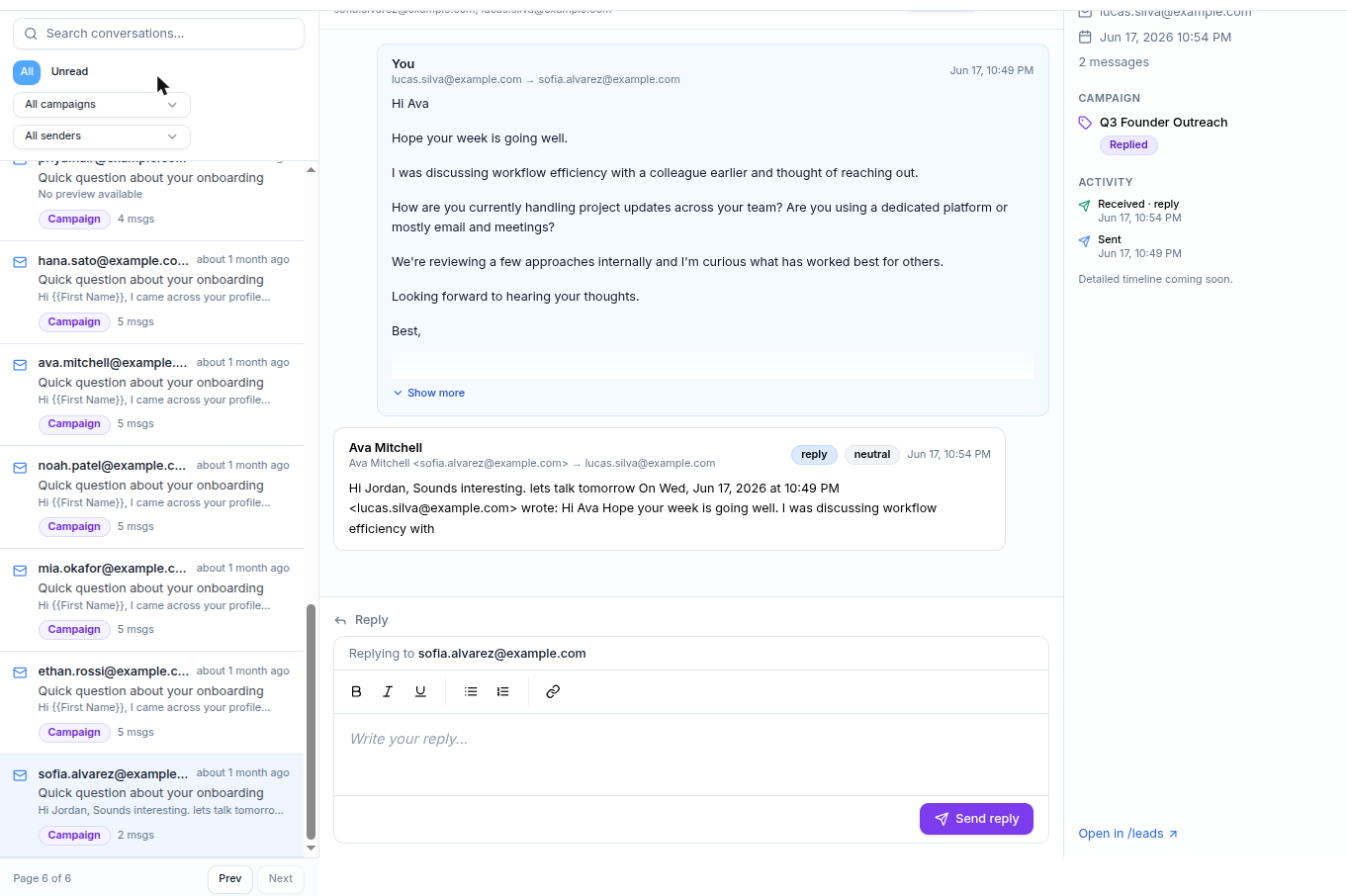
- Scan the conversation list on the left. Each row shows the participants, the subject, a preview of the latest message, a relative time, and badges for unread state and campaign.
- Use the All and Unread filters, or the campaign and sender dropdowns, to narrow the list.
- Click a conversation to open it. The messages appear oldest to newest on the right.
- Read the classification and intent badges on each incoming reply to see how Tantra interpreted it.
- Use the right sidebar to see the linked campaign, the derived enrollment status, and a link to open the contact in your leads list.
Screens and controls
- Conversation list. Titled Inbox with a total count, plus a Search conversations... box that filters the current list by subject, preview, and participants.
- Filter buttons. All and Unread switch between every conversation and only those with unread messages.
- Campaign filter. An All campaigns dropdown, plus one entry per campaign with its thread count.
- Sender filter. An All senders dropdown that limits the list to one sending mailbox.
- Thread rows. Each row shows participants, a relative time, the subject or (no subject), a preview or No preview available, an Unread badge, a Campaign badge, and a message count.
- Conversation view. Shows each message as a card. Long messages get a Show more and Show less control. Quoted history is hidden behind Show trimmed content.
- Message badges. Every message can show a classification badge. Incoming replies also show an intent badge. Bounced messages show a reason banner.
- Sidebar. Shows the thread's mailbox and message count, the linked campaign with a status badge, a derived activity summary, and an Open in /leads link.
Field reference
| Control | What it does |
|---|---|
| Search conversations... | Filters the loaded list by subject, preview, and participants |
| All / Unread | Shows all conversations, or only those with unread messages |
| All campaigns | Limits the list to one campaign |
| All senders | Limits the list to one sending mailbox |
| Classification badge | Labels a message as reply, bounce, auto response, unsubscribe, or other |
| Intent badge | On an incoming reply, shows positive, negative, or neutral |
| Open in /leads | Opens the contact in your leads list |
What the reply box does today
The conversation view includes a reply box with a Send reply button. Sending a manual reply from the inbox is currently in preview and is not yet available. When you try to send, Tantra keeps your drafted text and shows this notice:
Manual reply is in preview. Phase 1.5 ETA next sprint.
Until this feature ships, reply to prospects from your normal email client, for example Gmail. Tantra still detects and classifies that reply on its next polling cycle, as long as it stays on the same thread, and the enrollment stops sending follow-ups. See Reply detection and intent classification.
What happens next
- New replies appear on the polling cadence, usually within about a minute for an actively sending mailbox. The unread count in the sidebar refreshes about every 30 seconds.
- When a real reply lands, Tantra stops the prospect's sequence so they do not get more follow-ups. See Enrollment lifecycle and statuses.
- The conversation you open is marked read right away.
Best practices
- Use the campaign and sender filters to triage replies from one campaign at a time.
- Watch the intent badge to prioritize positive replies first.
- Reply from your normal mail client for now, and keep the reply on the same thread so Tantra can link it back to the campaign.
Common mistakes
- Expecting replies to appear instantly. Detection runs on a schedule, so allow a short delay.
- Assuming the Send reply button sends. It does not yet. Your draft is kept and a preview notice appears.
- Replying from a different address or breaking the thread. That can stop Tantra from linking the reply to the campaign.
Troubleshooting
| Symptom | Cause | Fix |
|---|---|---|
| A reply I can see in Gmail is not in the inbox yet | Detection runs on a polling cadence, not instantly | Wait a minute or two. Older campaigns poll less often |
| Clicking Send reply shows "Manual reply is in preview. Phase 1.5 ETA next sprint." | Sending from the inbox is not yet available | Reply from your normal mail client and keep the same thread |
| No conversations at all | No campaign has sent yet, or senders are disconnected | Launch a campaign and confirm your senders are connected |
| A reply is not linked to its campaign | The reply broke the thread or came from a different address | Nothing to fix on the reply. Future replies on the original thread will link correctly |
FAQ
Can I send a reply from the inbox?
Not yet. The reply box is in preview. When you try to send, Tantra keeps your text and shows a preview notice. Reply from your normal mail client for now.
How fast do replies show up?
On a polling cadence. For a mailbox that is actively sending, expect a reply within about a minute. Older campaigns are checked less often.
Why is a message labeled "auto response"?
Tantra detected an out-of-office or automatic acknowledgement. These do not stop the sequence. See Reply intents explained.
What does the sidebar status badge mean?
It is a status derived from the messages in the thread, such as replied, bounced, or unsubscribed. It reflects the prospect's enrollment in the campaign. See Enrollment lifecycle and statuses.
Does opening a conversation mark it read?
Yes. Opening a thread marks it read as a side effect.
Where do I manage the prospect after they reply?
Open the contact from the sidebar's Open in /leads link. See Manage leads, stages, and scores.
Related articles
Was this article helpful?
Related articles
- Reply detection and intent classificationLearn how Tantra polls your mailboxes to detect replies, links them to the right campaign, and classifies each one with AI and a keyword fallback.
- Manage leads, stages, and scoresTrack prospects in Tantra's leads view, set stages, read the automatic engagement score, and open a lead's activity, notes, and campaigns.