
Manage contacts and lists
Add, filter, and delete contacts, organize them into lists, and use lists to target your calendar and cold email campaigns.
Open in Tantra
These open the app in a new tab. You may be asked to sign in.
Overview
The Contacts page is where you keep the people you reach out to. A contact holds a name, email, and other details. A list is a named group of contacts. Both calendar campaigns and cold email campaigns target lists, so organizing contacts into lists is how you decide who a campaign reaches.
How it works
The page has two views, switched with the Contacts and Lists toggle at the top right.
- Contacts shows every contact in a table.
- Lists shows your lists, with a card or row layout you pick using the grid toggle.
A contact can belong to more than one list. Deleting a contact removes it everywhere. Deleting a list does not delete the contacts inside it.
Before you start
- Nothing is required to add a contact by hand.
- To add many contacts at once, use the CSV import instead. See Import contacts from CSV.
Step-by-step
Add a single contact
- In the left sidebar, click Contacts.
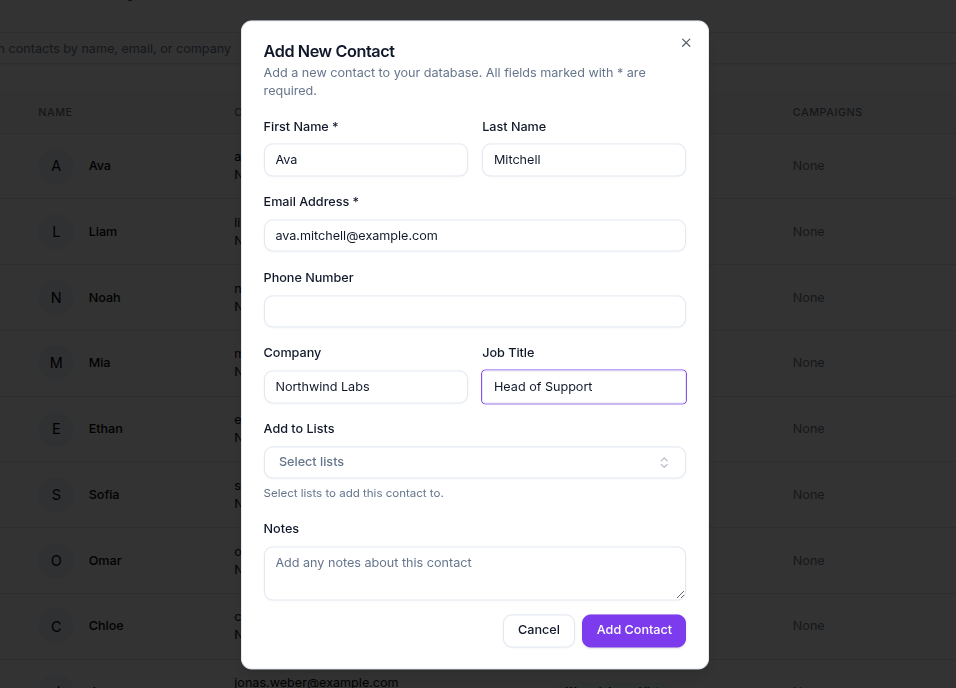
- Make sure the view is set to Contacts, then click Add Contact.
- Fill in the form. First Name and Email are required. You can also set Last Name, Phone Number, Company, Job Title, and Notes.
- Under Add to Lists, pick at least one list. If you have no list yet, create one first.
- Click Add Contact.
Create a list
- Switch the view to Lists, then click Add List.
- Enter a List Name. A Description is optional.
- Click Add List.
Delete contacts in bulk
- In the Contacts view, select the checkbox on each contact you want to remove.
- A bar appears showing how many are selected, for example
3 contacts selected. - Click Delete Selected, then confirm in the Are you absolutely sure? dialog.
Screens and controls
- Contacts / Lists view toggle, and a card or row layout toggle for lists.
- Import Contacts button, which opens the CSV import flow.
- Add Contact and Add List buttons, shown depending on the current view.
- A Search contacts by name, email, or company box that runs when you press Enter, plus a Filters popover to filter by list, by campaign, or by tag.
- The contacts table shows a select checkbox, Name, Contact Info, Lists, Campaigns, and Created at.
- The lists table shows List Name, Contacts, and Created On.
Field reference
| Field | Where | Required | Notes |
|---|---|---|---|
| First Name | Add Contact | Yes | Message shown if empty is First name is required |
| Add Contact | Yes | Must be a valid address. Message if invalid is Invalid email address | |
| Last Name, Phone Number, Company, Job Title, Notes | Add Contact | No | Free text |
| Add to Lists | Add Contact | Yes | Pick at least one. Message if empty is Select at least one list |
| List Name | Add List | Yes | Message if empty is List name is required |
| Description | Add List | No | Free text |
What happens next
A new contact or list appears in the table right away. List contact counts update as contacts are added or removed. Deleted contacts are removed immediately and cannot be recovered.
Best practices
- Group contacts into focused lists, such as one list per campaign or per segment, so targeting is clear.
- Keep company and job title filled in. Both are useful merge fields and help with personalization.
Common mistakes
- Trying to add a contact with no list selected. Create a list first, then assign the contact to it.
- Reusing an email that already exists. Tantra blocks the duplicate.
Troubleshooting
| Symptom | Cause | Fix |
|---|---|---|
This email address is already in use. | A contact with that email already exists | Search for the existing contact and edit it instead of adding a new one |
Select at least one list | No list chosen in Add Contact | Pick or create a list, then save |
| Search returns nothing | Search runs on Enter, and only matches name, email, or company | Press Enter after typing, and check spelling |
FAQ
Can a contact be in more than one list?
Yes. Assign a contact to as many lists as you need. Deleting one list does not remove the contact from the others.
Does deleting a list delete its contacts?
No. Removing a list leaves the contacts in place. They stay in any other lists they belong to.
How do I add hundreds of contacts at once?
Use the CSV import. See Import contacts from CSV.
How do I stop emailing someone permanently?
Add them to your suppression list. See Suppression lists and unsubscribes.
Why is First Name required?
Tantra uses the first name in greetings and merge fields, so every contact needs one.
Related articles
Was this article helpful?
Related articles
- Import contacts from CSVUpload a CSV, map its columns to Tantra fields, name a new list, and import up to 50,000 contacts in one file.
- Suppression lists and unsubscribesBlock emails, domains, TLDs, and role mailboxes so Tantra never sends to them, and see how unsubscribes and bounces are suppressed automatically.